Legacy CRM to Zoho CRM Migration: Complete Guide (2026)
Migrating from a legacy CRM to Zoho CRM? This guide covers data extraction, schema mapping, business logic rebuilds, and how to avoid the pitfalls that derail most projects.
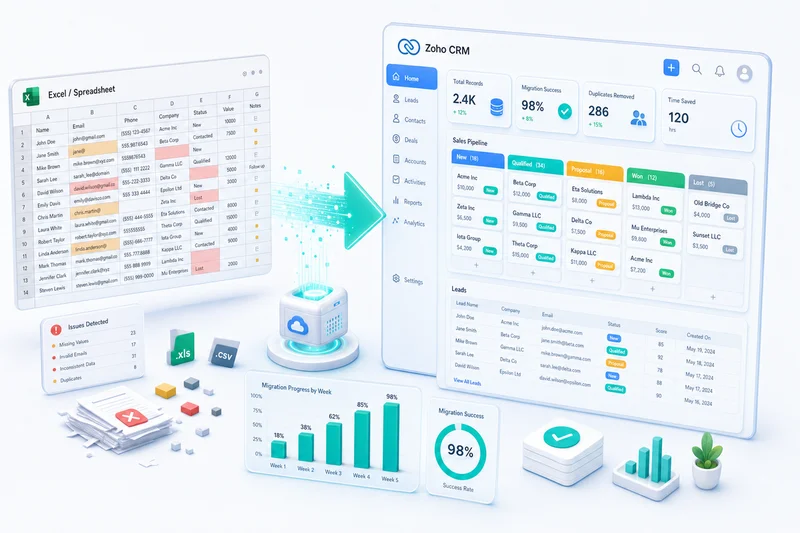
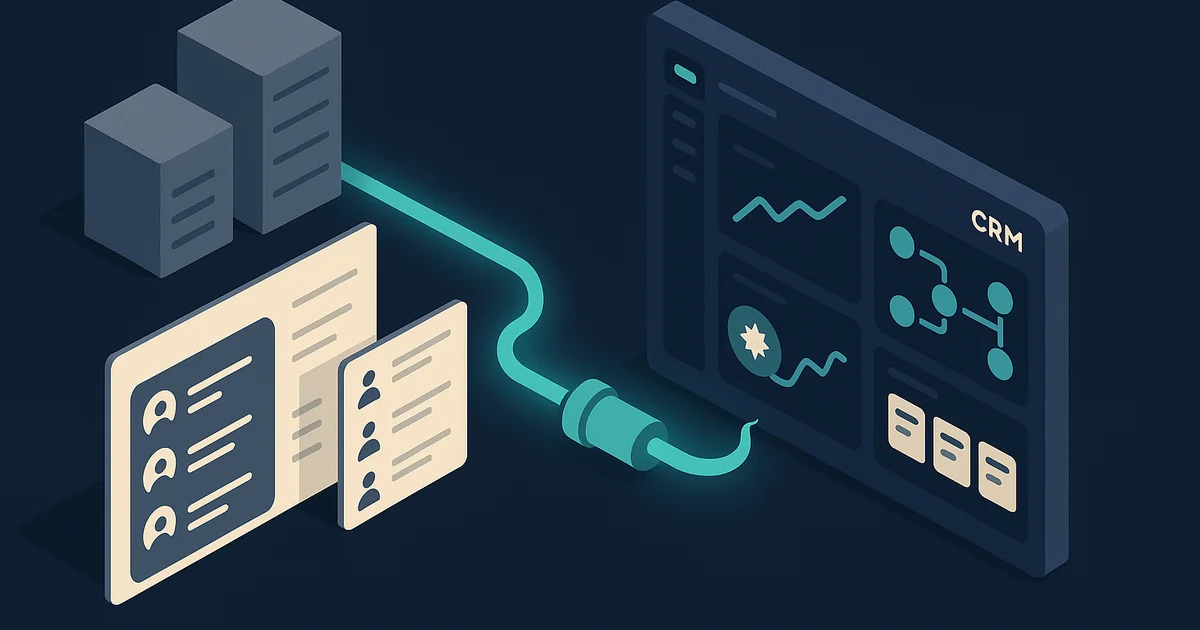
A legacy CRM to Zoho CRM migration moves your customer data, contact records, deal history, and business rules from an end-of-life or custom-built system into Zoho CRM's cloud platform. The process involves extracting data from the source system, cleaning and transforming it to match Zoho's data model, importing it module by module, and rebuilding automation and business logic in Zoho's native tools.
Unlike migrating from Salesforce or HubSpot (see the Salesforce to Zoho CRM migration guide and Microsoft Dynamics to Zoho CRM migration guide for those structured paths), where data structures map cleanly, legacy migrations start from a messier place. If your CRM runs on a server in the back office, was built by a contractor who left three years ago, or comes from a vendor that stopped updating it around 2020, you already know the shape of the problem: no mobile access, no integrations, no security patches, and a growing stack of workarounds just to keep it functional.
This guide covers the full process: what makes legacy migrations different, how to get your data out, how to map it into Zoho CRM, and where most projects go sideways.
Common legacy CRM systems people migrate from
| System | Status | Export options |
|---|---|---|
| Act! (Swiftpage) | Still maintained but shrinking user base | Built-in CSV export, direct database access |
| GoldMine | End of life for many versions | SQL database export, CSV export |
| Lotus Notes / HCL Notes | Legacy, declining | Notes-to-CSV tools, NSF export |
| FileMaker Pro | Active but limited as CRM | Built-in CSV export, ODBC |
| Microsoft Access databases | Common for custom-built CRMs | Direct table export to CSV/Excel |
| Custom-built (PHP, .NET, Java) | Varies | SQL database queries, API if available |
| Sage CRM | Legacy for many users | SQL export, built-in export tools |
| SugarCRM (Community Edition) | End of life | SQL database export, CSV export |
| Insightly (older plans) | Active but teams outgrow it | Built-in CSV export |
| vTiger | Open source, self-hosted | SQL export, built-in module export |
If your system is not on this list, the principles still apply. Any system that stores data in a database can be migrated. The only variable is how you get the data out.
What makes legacy migrations harder than CRM-to-CRM migrations
No standard data model
Salesforce, HubSpot, and Pipedrive all use recognizable CRM structures: Contacts, Accounts, Deals. Legacy systems — especially custom-built ones — often don't. Your "customers" table might combine what should be separate contacts and accounts. Your "projects" table might be half deals and half service records. Untangling this requires judgment calls, not just field mapping.
Data quality has degraded
A system running for 10 to 20 years without strict validation accumulates problems:
- Duplicates from the old system having no deduplication
- Inconsistent formatting across phone numbers, addresses, names
- Orphaned records pointing to deleted parent records
- Fields repurposed over the years — a "Notes" field that now holds pricing information
- Encoding issues from older Windows systems (Windows-1252 vs UTF-8)
Business logic is hidden
In modern CRMs, automation rules are visible and documented. In legacy systems, business logic often lives in stored procedures, application-layer code (PHP, .NET, VB), macros in Access or FileMaker, or scheduled scripts. Some of it only exists in one person's head. You need to surface all of it before migration, because none of it transfers automatically.
The extraction problem
Modern CRMs have export buttons. Legacy systems might require direct SQL queries against the database, vendor-specific export tools (some of which no longer work on modern OS), ODBC connections, or in the worst cases, manual data entry. Our legacy migration service covers all of these scenarios, including systems with no documentation and no export function.
Step-by-step migration process
Step 1: Audit your legacy system
This step takes longer than people expect, and skipping it creates problems downstream.
Map the data schema:
- List every table or entity in the database
- Document every field: name, data type, whether it is required, sample values
- Map relationships between tables (foreign keys, linking tables)
- Note record counts per table
Document business rules:
- What happens when a new record is created? (auto-assignment, notifications)
- What validations run on data entry? (required fields, format checks)
- What calculated fields exist? (deal value, lead score, aging calculations)
- What reports does the team rely on weekly?
- Are there scheduled tasks that run automatically?
Identify data owners:
Who knows the system best? Usually one person — the one who built it or has maintained it the longest. Find them early. Also map which teams depend on which data, because sales and finance rarely want the same fields.
Step 2: Assess data quality
Before designing the Zoho CRM schema, understand what you are actually working with.
Run these checks:
- Duplicates. Query by email, phone, or name to estimate the duplicate rate. Legacy systems often have 10–25% duplication.
- Completeness. What percentage of contacts have email addresses? Blank required fields cause import failures.
- Consistency. Are date formats consistent across the dataset? Are phone numbers in a single format?
- Orphans. Are there activity or note records pointing to contacts that no longer exist?
- Encoding. Open a CSV in a plain text editor and look for garbled characters — a reliable sign of encoding problems.
Create a data quality report per table. It sets expectations for cleanup effort and helps you decide what is worth migrating versus archiving.
Step 3: Design the Zoho CRM schema
This is part technical mapping and part business decision-making.
Map legacy tables to Zoho modules:
| Legacy table | Zoho CRM module | Decision |
|---|---|---|
| Customers | Accounts + Contacts | Split companies into Accounts, people into Contacts |
| Prospects / Leads | Leads | Direct mapping |
| Opportunities / Projects | Deals | Map to deal pipeline |
| Activities / Tasks | Tasks + Calls + Events | Split by activity type |
| Notes / Comments | Notes | Direct mapping |
| Products / Services | Products | Direct mapping |
| Invoices / Orders | Invoices or Sales Orders | Depends on your workflow |
| Custom tables | Custom Modules | Evaluate whether each custom table is still used |
Common schema decisions:
Legacy systems often store companies and people in one table. You need to split these into Accounts and Contacts for Zoho CRM. Use a "type" or "category" field to determine the split, or look for a "company name" field to identify company records.
Status fields in legacy systems tend to accumulate values over the years. Consolidate them into a clean set of 5 to 10 statuses before import. Audit logs, temporary staging tables, and deprecated data tables can usually be archived rather than migrated.
Step 4: Extract data from the legacy system
For database-backed systems (SQL Server, MySQL, PostgreSQL, Access): Write SQL queries to export each table as CSV. Maintain primary key and foreign key columns — you need these to link records in Zoho CRM after import. Export relationship tables for many-to-many relationships separately.
For application-level exports: Use the system's built-in export if available. Act!, Sage, and vTiger all have this. Export module by module and check that exports include all fields, not just the default subset.
For systems with no export: Connect via ODBC and pull data into Excel or CSV, use the vendor's API if one exists, or engage a migration specialist for proprietary formats.
Save original exports. You will want to reference them during validation and again when users report a record "looks different" than before.
Step 5: Transform and clean the data
This is usually the longest phase.
Common transformations:
- Split combined name fields: "John Smith" becomes First Name "John", Last Name "Smith"
- Split combined address fields into Street, City, State, Zip
- Standardize all dates to YYYY-MM-DD for import
- Standardize phone numbers to a single format
- Replace internal codes with readable values: "S01" becomes "Active"
- Deduplicate by matching on email first, then phone, then name plus company. Merge rather than delete — the duplicate may have unique data in other fields.
- Fill required fields. Zoho CRM requires Last Name for Contacts and Leads.
- Remove test records, internal system records, and data with no business value.
Tools:
Excel or Google Sheets works for smaller datasets under 5,000 records. Python with pandas handles larger datasets or complex transformations. OpenRefine is good for deduplication and standardization. SQL scripts work well when your data is still in the source database.
Step 6: Run a trial import
Import 200 to 500 records from your most complex module — usually the one that was the legacy "customers" or "opportunities" table.
Check that field values populated correctly, picklist values matched (not defaulting to blank), dates display correctly, lookup relationships link records properly, and special characters didn't garble. It is normal to need 2 to 3 trial iterations before the mapping is clean.
Step 7: Execute the full migration
Import in relationship order:
- Accounts (companies and organizations)
- Contacts (people linked to Accounts)
- Leads (unqualified prospects)
- Deals (linked to Accounts and Contacts)
- Products (independent)
- Tasks, Calls, Events (linked to parent records)
- Notes (linked to parent records)
- Custom module records
- Attachments (uploaded and linked to records)
After each module import, compare record counts against the source, spot-check 20 to 30 records, verify lookup relationships, and check the import log for skipped records. Zoho CRM's 2026 bulk import handles up to 50,000 records per batch, with a detailed error log for anything that fails.
Step 8: Rebuild business logic and train your team
Recreate business rules:
| Legacy logic | Zoho CRM equivalent |
|---|---|
| Validation rules | Validation Rules |
| Auto-assignment | Assignment Rules |
| Follow-up reminders | Workflow Rules (time-based triggers) |
| Calculated fields | Formula Fields |
| Scheduled tasks | Scheduled Functions (Deluge) |
| Complex processes | Blueprint |
Zoho CRM's 2026 workflow engine supports multi-condition triggers, cross-module actions, and AI-assisted suggestions via Zia. If you are rebuilding from scratch, this guide to Zoho CRM automations covers the 12 workflow types that replace most legacy automation patterns.
For setting up pipelines, modules, and lead scoring in the new system, the Zoho CRM setup guide walks through the configuration decisions that matter most for growing teams.
Rebuild reports:
Identify the 5 to 10 reports your team uses weekly. Recreate them in Zoho CRM's report builder and set up dashboards for managers. The pivot tables and custom report builder in Zoho CRM 2026 cover most of what legacy systems could produce via SQL reports.
Train your team:
Legacy migrations are different from CRM-to-CRM moves. Your team may be going from a Windows desktop application to a cloud-based web app for the first time. Start with the basics: how to find a contact, update a deal, log a call. Show the capabilities that did not exist before (mobile, email integration, automated reminders). Address the fear of data loss directly. Keep the old system accessible in read-only mode for 1 to 3 months — legacy users almost always need to look up historical records during transition.
Common pitfalls
Underestimating data cleanup
This is the biggest one. Legacy data is almost never import-ready. Data cleanup consistently takes 2 to 3 times longer than the actual import. Budget accordingly.
Trying to migrate everything
Not every record from a 15-year-old system needs to move to Zoho CRM. Leads from 2012 with no email address are not worth migrating. Focus on active contacts, open deals, and recent activity. Archive the rest.
Losing relationship links
Legacy systems use internal IDs to link records. Zoho CRM generates its own IDs on import. You need a mapping strategy: import parent records first, capture Zoho's generated IDs, then use those IDs to link child records. The Zoho CRM API handles this more cleanly than CSV import for complex relationship structures.
Ignoring hidden business logic
The stored procedure that automatically escalates stale leads, the script that calculates commissions, the macro that sends a weekly pipeline report — if you do not document these, they will be missing from the new system and nobody will notice until something breaks.
Not involving end users early enough
The person who used the legacy system daily knows things that no documentation captures: data conventions, workarounds, edge cases. Bring them into the audit and validation phases, not just the training session at the end.
Encoding and character set issues
Migrating from older Windows systems (Windows-1252 encoding) to a cloud platform (UTF-8) causes special characters to break — accented names, currency symbols, em dashes. Convert CSV files to UTF-8 encoding before import.
What you gain by moving to Zoho CRM
The gap between a legacy system and Zoho CRM 2026 is significant:
| Capability | Legacy CRM | Zoho CRM (2026) |
|---|---|---|
| Access | On-premises only | Browser, iOS, Android |
| Updates | Manual patching | Continuous, automatic |
| Integrations | Isolated | 1,000+ via Zoho Flow + Marketplace |
| Automation | Stored procedures / macros | Workflow Rules, Blueprint, Cadences |
| AI | None | Zia: lead scoring, deal predictions, anomaly detection, email sentiment |
| Reporting | SQL dumps to Excel | Real-time dashboards, pivot tables, forecasting |
| Security | Often minimal | TLS, role-based access, 2FA, audit logs |
| Mobile | None or limited | Full-featured mobile app |
Zoho CRM also connects natively to Zoho Books and Zoho Inventory, which matters if you handle invoicing or order management. The integration between Zoho CRM, Books, and Inventory eliminates manual data transfer between sales and finance — a common workaround in legacy setups.
If you are also considering a broader ERP migration, the SAP to Zoho ERP migration guide covers what happens when the legacy stack extends beyond CRM.
Realistic timelines
| Complexity | Source system | Timeline | Key variables |
|---|---|---|---|
| Low | Clean Access/FileMaker database, under 5,000 records | 2–4 weeks | Good data quality, simple schema |
| Medium | Legacy CRM (Act!, GoldMine, Sage) with 5,000–50,000 records | 4–8 weeks | Custom fields, moderate data quality issues, some business rules |
| High | Custom-built system with 50,000+ records | 2–4 months | Non-standard schema, poor data quality, embedded business logic |
Phase breakdown (medium complexity)
| Phase | Duration | What happens |
|---|---|---|
| Audit and schema mapping | 1–2 weeks | Document legacy system, design Zoho CRM structure |
| Data extraction | 2–3 days | Export tables to CSV |
| Data cleanup and transformation | 1–2 weeks | Deduplicate, standardize, split fields, fill gaps |
| Zoho CRM setup | 1 week | Configure modules, fields, picklists, roles |
| Trial import and validation | 3–5 days | Test imports, fix mapping issues, iterate |
| Full import | 2–3 days | Import all modules in order, validate |
| Business logic rebuild | 1–2 weeks | Workflow rules, Blueprints, reports |
| Training and parallel run | 2–4 weeks | Team training, old system as read-only reference |
DIY vs. getting help
DIY works when:
- Your source is a simple database (Access, FileMaker) with clean data
- Under 5,000 records
- No complex business logic to preserve
- Someone on your team is comfortable with SQL, CSV manipulation, and CRM administration
- You have 4 to 6 weeks to dedicate to it
A partner is the right call when:
- The source is custom-built with a non-standard schema
- Large datasets need ETL scripting
- Business rules are buried in code or stored procedures
- Data quality requires significant cleanup work
- Your team has never used a modern CRM
- Business continuity is critical — migration errors have real operational cost
Legacy migrations are where Zolify adds the most value. We have handled migrations from Access databases, FileMaker setups, custom PHP/MySQL systems, and end-of-life CRMs that other consultants declined. Our team includes a Chartered Accountant on staff, 100+ completed Zoho migrations, and an Official Zoho Finance Partner credential. The audit and data transformation work is where expertise matters most. Getting clean data into Zoho CRM is the easy part.
Every migration includes a zero-data-loss guarantee. Both systems run in parallel until your team confirms the new system is working.
Talk to us about your legacy CRM migration
Frequently Asked Questions
Any CRM that is no longer actively developed, has reached end of life, was built in-house, or runs on outdated infrastructure — on-premises databases, Access databases, FileMaker Pro, Act!, GoldMine, Lotus Notes, or custom PHP/ASP apps. If your vendor stopped releasing updates or the person who built it has left, you are running a legacy CRM.
Simple migrations from systems with clean CSV export capability take 2 to 4 weeks. Complex migrations from custom-built databases with non-standard schemas, embedded business logic, or poor data quality take 2 to 4 months. Data extraction and cleanup consume the most time. Once data is in clean CSV format, importing into Zoho CRM is fast. Zoho's 2026 bulk import handles up to 50,000 records per batch.
Yes. Export data from the on-premises database via SQL queries or built-in export tools, transform it to CSV, clean it, and import into Zoho CRM. SQL Server, MySQL, and PostgreSQL are straightforward. Proprietary databases may need vendor-specific export tools or ODBC connections.
You have several options: direct database access via SQL queries, the vendor's API if one exists, third-party ETL tools, or for systems running on Access or FileMaker, direct table export to CSV. As a last resort, a data migration specialist can extract from proprietary formats. We have migrated from systems with no documentation and no export button.
Custom business logic does not transfer automatically from any source system. Validation rules, automated actions, calculated fields, and custom reports must be rebuilt in Zoho CRM using Workflow Rules, Blueprints, Deluge custom functions, formula fields, and the report builder. Document all business rules before migration — this is the step most teams skip and regret.
See exactly where your Shopify, Amazon, or WooCommerce ops are leaking — free.
Get a personalised eCommerce Ops Audit: inventory gaps, accounting leaks, and order-flow bottlenecks — with a Zoho fix roadmap. Delivered in 48 hours, at no cost.