Zendesk to Zoho Desk Migration: Complete Guide (2026)
Step-by-step guide to migrating from Zendesk to Zoho Desk. Covers ticket migration, automation rebuilds, macro transfer, pricing comparison, and common pitfalls.
Zendesk is one of the most widely used helpdesk platforms in the world. It is also one of the most expensive. And over the past few years, the pricing has only gone in one direction.
Zendesk Suite Professional costs $115 per agent per month. Zoho Desk Professional costs $23. That is an 80% difference. For a 15-agent support team, you are looking at $20,700 per year on Zendesk versus $4,140 on Zoho Desk. That is $16,500 back in your pocket, every year.
But you do not switch helpdesk platforms just for cost savings. You switch when the cost no longer matches the value you are getting. This guide covers what a Zendesk-to-Zoho-Desk migration actually involves: the data transfer, the automation rebuilds, the pitfalls to watch for, and how to make the switch without your customers noticing a thing.
Why Support Teams Leave Zendesk
The pricing has become hard to justify
| Tier | Zendesk (per agent/month) | Zoho Desk (per agent/month) | Savings |
|---|---|---|---|
| Suite Team | $55 | $14 (Standard) | 75% |
| Suite Growth | $89 | $23 (Professional) | 74% |
| Suite Professional | $115 | $23 (Professional) | 80% |
| Suite Enterprise | $169 | $40 (Enterprise) | 76% |
These savings are consistent across every tier. And Zendesk's pricing has been trending upward. They have been steering customers away from standalone Support plans and toward the more expensive Suite bundles. Standalone plans technically still exist, but Zendesk no longer promotes them on their main pricing page. If you were on the old Zendesk Support plan at $49/agent, you have likely been nudged (or will be) to Suite pricing.
Feature bundling you did not ask for
Zendesk's heavy push toward Suite pricing means most new customers end up paying for Talk (phone), Chat (live chat), Guide (knowledge base), and Explore (analytics) whether they use them all or not. Standalone Support plans still technically exist but are no longer prominently offered. If your team primarily handles email support and only occasionally uses chat, you are paying for four products when you need two.
Zoho Desk lets you pick what you need. The helpdesk is one product. Live chat is Zoho SalesIQ (separate or included in Zoho One). Analytics is Zoho Analytics (same). You pay for what you use.
Complexity creep
Zendesk is powerful, but configuring it properly has gotten complicated. The admin interface has expanded across Support, Chat, Guide, Explore, Talk, and the Zendesk Admin Center. Finding a specific setting sometimes means checking three different admin panels.
Zoho Desk keeps configuration in one place. Setup is Setup. Everything lives under one admin interface.
The ecosystem question
If you use Zoho CRM, Zoho Books, or other Zoho products, running Zendesk alongside them creates an integration gap. A support agent cannot see a customer's invoices, pipeline status, or order history without a third-party connector.
Zoho Desk connects to Zoho CRM, Zoho Books, Zoho Inventory, and Zoho Projects natively. Customer context flows between apps without middleware.
How the Migration Works
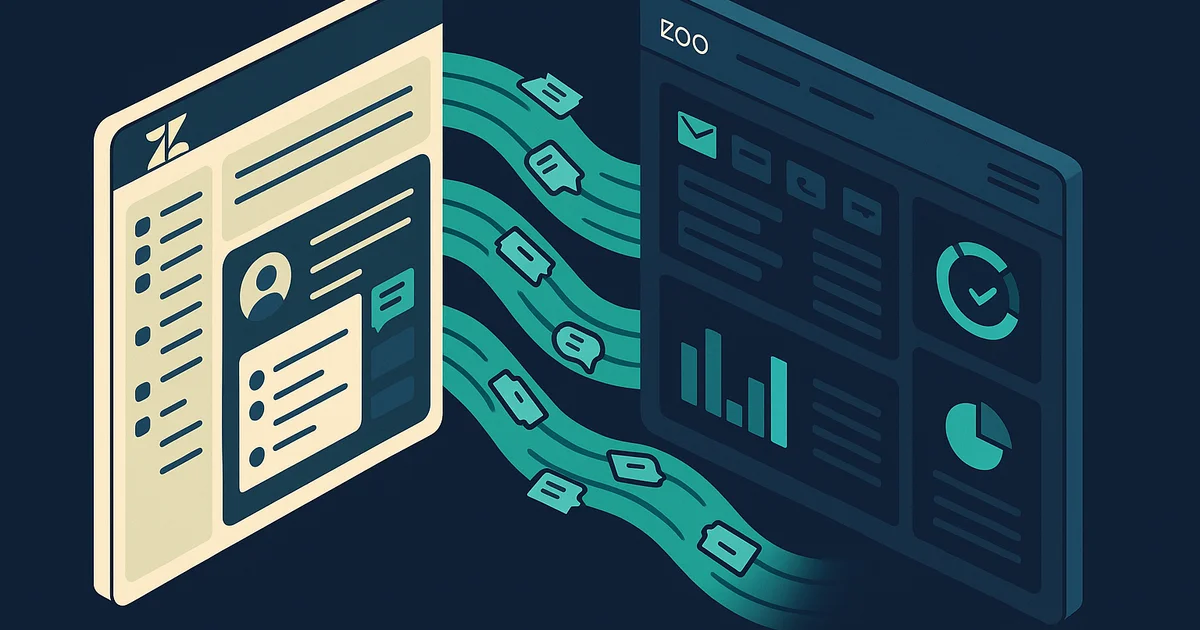
Zoho Desk has a migration tool called Zwitch (under Setup > Data Administration) with a dedicated Zendesk migration option. Zwitch handles tickets (including comments and threads), contacts, organizations, and knowledge base articles. For very large datasets or custom migration requirements, you can supplement Zwitch with direct API transfers.
Export options from Zendesk
Zendesk Data Export (built-in): 1. Go to Admin Center > Account > Tools > Reports 2. Request a data export (JSON or CSV) 3. Zendesk emails you a download link when the export is ready (can take hours for large datasets) 4. The export includes tickets, users, organizations, and groups
Zendesk API: For ticket comments, attachments, and more granular control, use the Zendesk API: - GET /api/v2/tickets: ticket records - GET /api/v2/tickets/{id}/comments: all comments on a ticket - GET /api/v2/users: end-users and agents - GET /api/v2/organizations: companies
API rate limit: 700 requests per minute on Professional/Enterprise. For 50,000 tickets with comments, plan for a multi-hour export process.
Zendesk Guide export: Knowledge base articles can be exported via the Help Center API (GET /api/v2/help_center/articles). There is no built-in bulk export for Guide content.
Third-party tools
- Help Desk Migration. Supports Zendesk → Zoho Desk with tickets, conversations, attachments, contacts, and organizations. Paid, based on record count.
- Import2. CRM and helpdesk migration tool.
Data Mapping: Zendesk to Zoho Desk
Object mapping
| Zendesk | Zoho Desk | Notes |
|---|---|---|
| Users (end-users) | Contacts | Direct mapping |
| Organizations | Accounts | Direct mapping |
| Tickets | Tickets | Core fields map cleanly |
| Ticket Comments | Ticket Threads | Public replies and internal notes |
| Groups | Teams | Direct mapping |
| Agents | Agents | Map by email |
| Brands | Departments | If using multi-brand Zendesk |
| Guide Categories | KB Categories | Structure maps but rebuild needed |
| Guide Sections | KB Sections | Direct mapping |
| Guide Articles | KB Articles | Content maps; formatting may differ |
| Views | Custom Views | Must recreate filter logic |
| Tags | Tags | Direct mapping |
Ticket field mapping
| Zendesk Field | Zoho Desk Field | Notes |
|---|---|---|
| Subject | Subject | Direct mapping |
| Description | Description | Direct mapping |
| Status (New/Open/Pending/On-hold/Solved/Closed) | Status | Map custom statuses; Zendesk defaults differ from Zoho defaults |
| Priority (Low/Normal/High/Urgent) | Priority | Direct mapping |
| Type (Question/Incident/Problem/Task) | Classification or Custom Field | Zoho uses different terminology |
| Group | Team | Direct mapping |
| Assignee | Agent/Owner | Map by email |
| Requester | Contact | Link to imported contact |
| Organization | Account | Link to imported account |
| Tags | Tags | Direct mapping |
| Channel | Channel | Email/Chat/Phone/Web, direct mapping |
| Custom Fields | Custom Fields | Must create in Zoho Desk first |
| Created At | Created Time | Direct mapping |
| Solved At | Closed Time | Map accordingly |
| Satisfaction Rating | Customer Happiness Rating | Zoho uses its own CSAT system |
Status mapping deserves special attention
Zendesk and Zoho Desk use different default statuses:
| Zendesk Status | Zoho Desk Equivalent | Notes |
|---|---|---|
| New | Open | Similar concept |
| Open | Open | Direct mapping |
| Pending | On Hold | "Waiting for customer reply," map to On Hold or create a custom status |
| On-hold | On Hold | Direct mapping |
| Solved | Closed | Zoho treats these similarly |
| Closed | Closed | Direct mapping |
If you have custom ticket statuses in Zendesk, create them in Zoho Desk before importing. Otherwise, tickets default to "Open" and you lose the status information.
Step-by-Step Migration Process
Step 1: Audit your Zendesk account
Zendesk instances accumulate a lot of configuration. Take inventory.
- Custom ticket fields. List every custom field, its type, and its options. Note required fields.
- Triggers. Document every trigger: event condition, action. Zendesk triggers fire on ticket create or update. These map to Zoho Desk workflow rules.
- Automations. Document every time-based automation (e.g., "close ticket 48 hours after status set to Solved"). These map to Zoho Desk time-based rules.
- Macros. List every macro your agents use regularly. These are one-click action sets (change status + add tag + send reply). They map to Zoho Desk macros.
- SLA policies. Document response time and resolution time targets by priority. Note business hours and escalation rules.
- Views. List the ticket views your team uses. These are essentially saved filters and map to Zoho Desk custom views.
- Guide content. Count categories, sections, and articles. Note any custom Guide themes or community forums.
- Custom apps. List any Zendesk apps installed from the marketplace or custom-built apps.
- Channels. Email addresses, Chat widget configuration, Talk phone numbers, social channels.
- Integrations. Slack, JIRA, Salesforce, Shopify, custom API integrations. List everything.
- Brands. If you run multi-brand Zendesk, document each brand's configuration.
Step 2: Clean up your data
- Close old tickets. Tickets in "Solved" status for 6+ months should be closed. Tickets in "Pending" for 90+ days with no customer reply should be closed.
- Merge duplicate users. Same customer with different email addresses appearing as separate users. Merge them in Zendesk before export.
- Remove suspended tickets. Spam and suspended tickets are waste. Delete them.
- Standardize tags. If you have tags like "bug", "Bug", "BUG", and "software_bug", consolidate before export. Tags transfer as-is and inconsistencies become permanent.
Step 3: Configure Zoho Desk
Mirror your Zendesk setup in Zoho Desk before importing data.
- Departments. Create departments for each Zendesk brand or product category. If you run a single-brand Zendesk, one department may suffice.
- Channels. Set up email forwarding, chat (via Zoho SalesIQ), and phone (via Zoho Voice or Zoho Telephony).
- Custom fields. Create every custom ticket field matching Zendesk. Match field types and dropdown values exactly.
- Statuses. Add custom statuses to match Zendesk. Pay attention to the Pending/On-hold mapping.
- Priorities. Zoho Desk uses Low/Medium/High by default. If you need "Urgent" or "Normal" as separate priorities, customize the priority field.
- SLA policies. Set up response and resolution time targets matching your Zendesk SLAs.
- Teams. Create teams matching your Zendesk groups. Assign agents.
- Business hours. Match your Zendesk schedule: working days, hours, holidays, time zone.
Step 4: Export data from Zendesk
Bulk data export: 1. Go to Admin Center > Account > Tools > Reports 2. Click "Export" tab 3. Select the export type (JSON is more complete, CSV is easier to work with) 4. Zendesk processes the export and emails you a download link
For large instances, this export can take several hours. The download link is available for about 3 days.
API export for ticket comments: The bulk export does not include ticket comment bodies in a usable format. For complete conversation history, use the Zendesk API to fetch comments per ticket:
` GET /api/v2/tickets/{ticket_id}/comments.json `
This returns all public replies and internal notes with timestamps, author, and attachments. You will need to paginate and batch this for large ticket volumes.
Guide (Knowledge Base) export: Use the Help Center API: ` GET /api/v2/help_center/{locale}/articles.json `
This returns article title, body (HTML), author, and metadata. Save articles with their category/section hierarchy preserved.
Step 5: Run a trial import
Import 200 to 500 tickets into Zoho Desk.
Check carefully: - Statuses mapped correctly, especially Pending and On-hold tickets - Priorities matched (Zendesk "Normal" should map to the right Zoho Desk priority) - Custom field values populated, not blank - Requester (contact) linked correctly - Assignee (agent) mapped to the right Zoho Desk agent - Tags transferred as-is - If you imported comments, verify public replies are public and internal notes are private
The status mapping is the most common failure point. Double-check it on every test ticket.
Step 6: Execute the full migration
Import order:
- Contacts (Users): end-users who submitted tickets
- Accounts (Organizations): linked to contacts
- Tickets: linked to contacts, assigned to agents
- Ticket comments/threads: linked to tickets (API migration)
- Knowledge base articles: imported into the correct category/section structure
- Attachments: downloaded from Zendesk, uploaded to Zoho Desk linked to tickets
After each batch, spot-check 20 to 30 records. Verify field values, contact links, and agent assignments. For large migrations (100,000+ tickets), import in batches of 10,000 to 20,000 and validate each batch before proceeding.
Step 7: Rebuild automations
Zendesk Triggers → Zoho Desk Workflow Rules
Triggers fire on ticket create or update based on conditions. Map each trigger to a Zoho Desk workflow rule with matching conditions and actions.
Common trigger translations:
| Zendesk Trigger | Zoho Desk Equivalent |
|---|---|
| Auto-assign ticket based on subject keyword | Assignment Rule with keyword condition |
| Send email notification on ticket create | Workflow Rule with email notification action |
| Add tag based on ticket channel | Workflow Rule with field update action |
| Escalate when priority is Urgent | Workflow Rule + SLA escalation |
| Notify Slack channel on new ticket | Workflow Rule + Zoho Flow (Slack connector) |
Zendesk Automations → Zoho Desk Time-Based Rules
Zendesk automations are time-triggered (e.g., "4 hours after ticket created, if status is still New, escalate"). Map these to Zoho Desk's time-based workflow rules.
Zendesk Macros → Zoho Desk Macros
Both platforms have macros, one-click multi-action shortcuts. Recreate each macro with the same actions (change status, assign agent, add tag, insert reply). This is one of the easier parts of the migration.
Zendesk Views → Zoho Desk Custom Views
Views are saved ticket filters. Recreate the filter criteria in Zoho Desk. Common views to rebuild: - My open tickets - Unassigned tickets - High-priority tickets - Tickets awaiting customer reply - Overdue tickets
SLA Policies
Rebuild your SLA targets with matching response and resolution times per priority. Configure escalation rules for breach warnings and breaches.
Step 8: Switch email routing and go live
Update your support email forwarding to route to Zoho Desk.
- MX record change: If your support address uses your own domain (support@yourcompany.com), update the forwarding rule or MX records to point to Zoho Desk.
- Schedule during low volume: Switch during your quietest support hours. Monitor both inboxes for 1 to 2 hours after the switch to catch any routing issues.
- Keep Zendesk read-only for 2 to 3 weeks. Agents will need to reference old ticket conversations during the transition.
- Update your help center URL. If customers bookmark your Zendesk Guide URL, set up a redirect to your new Zoho Desk knowledge base.
Common Pitfalls and How to Avoid Them
1. Zendesk status "Pending" has no exact Zoho Desk match
Zendesk uses "Pending" to mean "waiting for the customer." Zoho Desk's closest equivalent is "On Hold" or a custom status. If you do not create a matching status before import, Pending tickets default to "Open" and your agents lose context on which tickets are waiting for a customer reply.
2. Zendesk Ticket Type field does not map directly
Zendesk's Type field (Question, Incident, Problem, Task) is a core system field. Zoho Desk does not have an exact equivalent. It uses "Classification" which serves a similar purpose but with different default values. Create a custom picklist field for ticket type if your team relies on this distinction.
3. Multi-brand Zendesk needs careful department mapping
Each Zendesk brand has its own email address, help center, and branding. In Zoho Desk, map each brand to a separate Department. Each department gets its own email channel, and agents can be assigned to one or more departments.
4. Guide theme and custom CSS do not transfer
Zendesk Guide themes (Copenhagen or custom) are Zendesk-specific HTML/CSS templates. Zoho Desk's Knowledge Base (ASAP) has its own theming system. You will need to rebuild your help center styling from scratch. The article content transfers; the visual design does not.
5. Satisfaction survey data is not portable
Zendesk CSAT ratings on historical tickets do not export in a format that Zoho Desk can import. You can export them for your own records, but satisfaction ratings on migrated tickets will not appear in Zoho Desk. New tickets will use Zoho Desk's own satisfaction survey system.
6. API rate limits slow down large migrations
Zendesk allows 700 API calls per minute on Professional/Enterprise. If you are migrating 100,000 tickets with comments (each ticket needs at least 2 API calls, one for the ticket and one for comments), the full export can take 5 to 6 hours. Plan accordingly and do not start this on a Friday afternoon.
What Zoho Desk Does Better Than Zendesk
- Dramatically lower cost. 74% to 80% savings across every tier. This is not a marginal difference.
- Native CRM integration. Zoho Desk connects to Zoho CRM out of the box. Support agents see the full customer picture (deals, invoices, purchase history) without connectors.
- Zia AI included. Sentiment analysis, anomaly detection, auto-tagging, and response suggestions at no extra cost on Enterprise. Zendesk charges $50/agent/month for Advanced AI add-on.
- Blueprint process enforcement. Guided workflows for complex ticket types (e.g., return requests, escalation procedures). Zendesk has no equivalent structured process tool.
- No forced bundling. You are not paying for phone and chat if you only need email support.
- Zoho One ecosystem. CRM, helpdesk, accounting, project management, and 40+ more apps for $37/user/month (billed annually). Running Zendesk alongside other SaaS tools costs far more.
What Zendesk Does Better (Be Straight About It)
- Marketplace. Zendesk's app marketplace has 1,500+ integrations, more than Zoho Desk's marketplace. For niche tools and industry-specific integrations, Zendesk has broader coverage.
- Guide (Knowledge Base). Zendesk Guide with custom themes, community forums, and content cues is more mature than Zoho Desk's KB offering. If you have a large, customer-facing knowledge base with custom branding, this is a real consideration.
- Explore (Analytics). Zendesk Explore is a powerful analytics tool with pre-built dashboards and custom metric builders. Zoho Analytics is capable but requires more manual setup for helpdesk-specific reporting.
- Enterprise features. Sandbox environments, advanced AI (with the add-on), and multi-department routing are more mature in Zendesk at the enterprise level.
- Brand recognition with customers. Some enterprise customers expect to see "Powered by Zendesk" on your support portal. This is a soft factor but it comes up.
- Community forums. Zendesk Guide includes community forums for customer-to-customer support. Zoho Desk does not have a native community forum feature at the same level.
If you run a large knowledge base with community forums and custom themes, or if your support operation is 50+ agents with advanced analytics needs, evaluate carefully before switching.
Realistic Timelines
| Team Size | Tickets | Timeline | Key Variables |
|---|---|---|---|
| Small | Under 10,000 | 2-3 weeks | Basic setup, few triggers |
| Medium | 10,000-100,000 | 4-8 weeks | Custom fields, triggers, automations, SLAs, Guide content |
| Large | 100,000+ | 8-12 weeks | Multi-brand, custom apps, heavy automation, large KB |
Phase breakdown (medium team)
| Phase | Duration | What Happens |
|---|---|---|
| Audit and planning | 3-5 days | Document triggers, automations, macros, SLAs, Guide content |
| Data cleanup | 2-3 days | Close stale tickets, merge users, clean tags |
| Zoho Desk setup | 1 week | Configure departments, fields, statuses, SLAs, teams |
| Data migration and testing | 1-2 weeks | Export, trial import, full import, validate |
| Automation rebuilds | 1-2 weeks | Workflow rules, macros, views, templates |
| KB migration | 3-5 days | Transfer articles, rebuild structure, re-upload images |
| Email switch and parallel run | 2 weeks | Switch routing, monitor, train agents |
DIY vs. Getting Help
DIY works when:
- Under 10,000 tickets
- Standard ticket fields, few custom fields
- Fewer than 10 triggers and automations combined
- Small knowledge base (under 50 articles)
- Your team has time to learn Zoho Desk
A partner helps when:
- Large ticket volume requiring API-based migration
- Complex trigger and automation logic to translate
- Multi-brand Zendesk with separate help centers
- Knowledge base with 100+ articles and custom themes
- You cannot afford a gap in support quality during the switch
- You want Zoho CRM + Desk integration configured properly from day one
Zendesk-to-Zoho-Desk is one of the migrations where the cost savings alone justify the effort. At 80% less per agent, the math is straightforward. The challenge is in the details: status mapping, automation translation, and making sure your agents are comfortable before you flip the switch.
We have handled these at Zolify. The planning and automation rebuild is where having a migration partner saves you from the pitfalls listed above.
Talk to us about your Zendesk to Zoho Desk move →
Frequently Asked Questions
Small teams with under 10,000 tickets can finish in 2 to 3 weeks. Mid-size operations with 10,000 to 100,000 tickets, complex triggers, and multiple brands typically need 4 to 8 weeks. Enterprise operations with custom apps, Guide themes, and heavy automation can take 8 to 12 weeks. The ticket export and import is the straightforward part. Rebuilding triggers, automations, and macros takes the most effort.
No. Ticket records including subject, description, status, priority, assignee, tags, and creation date export from Zendesk and import into Zoho Desk. Ticket comments (public replies and internal notes) can be migrated via API. Attachments are downloadable and can be re-uploaded. The complete conversation history is preservable with proper planning.
Yes. Zoho Desk has a migration tool called Zwitch (under Setup > Data Administration) with a dedicated Zendesk migration option. It handles tickets including comments, contacts, organizations, and knowledge base articles. For very large migrations or custom requirements, you can also use the Zendesk API combined with the Zoho Desk API, or a third-party tool like Help Desk Migration.
Triggers, automations, macros, SLA policies, views, Guide articles with custom themes, custom apps, Answer Bot configurations, and Explore reports do not transfer. These must be rebuilt in Zoho Desk using workflow rules, assignment rules, macros, SLA policies, custom views, knowledge base articles, Zia AI, and Zoho Analytics.
Zendesk Suite Professional costs $115 per agent per month. Zoho Desk Professional costs $23 per agent per month, an 80% saving. Even at the entry level, Zendesk Suite Team is $55 per agent versus Zoho Desk Standard at $14. For a 15-agent team on Professional plans, that is over $16,500 per year in savings.