Zoho CRM Setup Guide: Modules, Pipelines, and Automation for Growing Businesses
Most Zoho CRM setups fail because they mirror the default configuration instead of the business. Here's how to set it up properly before Q4: pipelines, modules, automation, and scoring that match how your team actually sells — plus the three eCommerce CRM configurations that matter most heading into BFCM.
Zoho CRM is the relationship and pipeline layer of a complete business operations stack. Set it up right and it keeps your sales team focused, your forecasts accurate, and your customer data clean. Set it up wrong and you get a system nobody uses, with data nobody trusts.
The default Zoho CRM configuration is generic by design. It ships with pipeline stages like "Qualification" and "Needs Analysis" that don't map to how most businesses actually sell, fields nobody fills out, and zero automation. Teams either leave it that way and fight the system, or spend weeks tweaking settings without a clear plan.
This guide covers how we configure Zoho CRM for companies with 10-50 people, including eCommerce operators running on Shopify, Amazon, and WooCommerce who need their CRM connected to their store and operations data. It's based on patterns from 100+ implementations across eCommerce, professional services, manufacturing, and SaaS. If you're reading this ahead of BFCM, the Q4 setup priorities section covers what to configure first.
Start with your sales process, not Zoho's defaults
Before touching any settings, map out how your team actually sells. Not how you wish they sold. How it actually happens today.
Answer these questions:
- Where do leads come from? (Website forms, referrals, cold outreach, trade shows, partner channels, Shopify or Amazon inquiries)
- What qualifies a lead? (Budget, authority, need, timeline, or whatever criteria your team uses)
- What are the concrete steps between first contact and closed deal?
- Who owns each step?
- Where do deals stall or die?
Write this down. It becomes your pipeline blueprint. Skip this step and you will build a CRM that looks good in a demo but doesn't match reality.
Pipeline design: 5-7 stages, action-based
Your pipeline stages should represent actions completed, not feelings about the deal.
Bad stages: Interested → Warm → Hot → Closing Good stages: Discovery Call Done → Requirements Confirmed → Proposal Sent → Verbal Yes → Contract Signed
Here's a pipeline structure that works for most B2B companies:
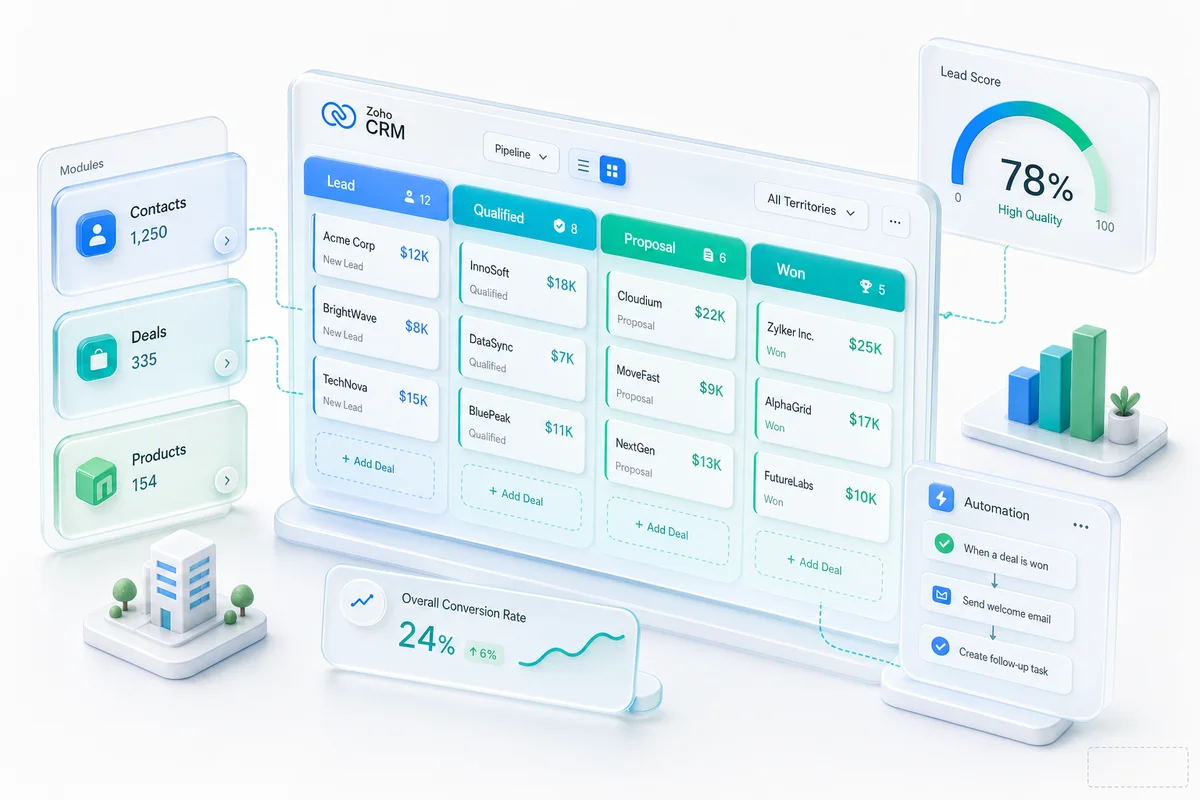
Stage 1: New Lead — Inbound or outbound, uncontacted. Auto-assigned based on territory, product interest, or round-robin.
Stage 2: Contacted — First conversation happened. You know who they are and what they need at a high level.
Stage 3: Discovery Completed — You have done a proper needs assessment. Budget, timeline, and decision process are documented.
Stage 4: Proposal Sent — Formal proposal or quote delivered. Pricing is on the table.
Stage 5: Negotiation — They are engaged but working through terms, timing, or internal approvals.
Stage 6: Verbal Commitment — They have said yes. Contract or PO pending.
Stage 7: Closed Won / Closed Lost — Terminal stages with mandatory close reason.
Each stage gets a probability percentage that Zoho uses for forecasting. Stage 1 might be 10%, Stage 5 might be 70%, Stage 7 is 100% or 0%.
The key: make the exit criteria for each stage explicit. A deal should not move from Discovery to Proposal until specific fields are filled (budget range, decision date, key stakeholders). Zoho's Blueprint feature enforces this (more on that below).
Custom modules and fields
Zoho CRM ships with standard modules: Leads, Contacts, Accounts, Deals, Activities, Products. For most businesses, you will need to customize these and potentially add custom modules.
Fields to add (and fields to hide)
Every implementation we do starts with the same exercise: hide the 30+ default fields your team will never use, and add the 10-15 fields they actually need.
Common custom fields across our implementations:
On Leads: Lead source (detailed, not just "Web"), industry, company size, initial interest (which product/service), and a qualification score.
On Deals: Close reason (mandatory on lost deals; this data is gold), competitor involved, deal type (new business vs. expansion vs. renewal), and expected start date.
On Contacts: Communication preference, decision role (economic buyer, technical evaluator, champion), and last meaningful interaction date.
On Accounts: Account tier (A/B/C based on revenue potential), number of employees, tech stack, and renewal date.
Hide everything else. A CRM with 50 visible fields per record is a CRM nobody updates.
When you need custom modules
Standard modules handle most sales processes. Custom modules make sense when you're tracking something that doesn't fit the Lead → Contact → Deal model:
- Projects (post-sale delivery tracking alongside the sales pipeline)
- Partners (channel partner management with deal registration)
- Products with complex configurations (beyond what the standard Products module handles)
- Subscriptions (recurring revenue with renewal tracking)
Zoho CRM Enterprise ($50/user/month) supports custom modules. Professional does not; if you need them, budget for Enterprise from the start.
Automation: workflows, Blueprint, and assignment rules
Automation is where a properly configured CRM pays for itself. The goal isn't to automate everything; it's to automate the repetitive tasks that eat your team's time and the follow-ups that get forgotten.
Assignment rules
Leads need to reach the right person fast. Configure assignment rules based on:
- Territory: leads from specific regions go to the rep covering that territory
- Product interest: leads asking about different products go to different specialists
- Round-robin: equal distribution when there's no logical routing criteria
- Company size: enterprise leads go to senior reps, SMB leads go to SDRs
Workflow rules
Workflow rules fire when records meet specific conditions. The ones we configure most often:
- Follow-up reminders: If a deal sits in "Proposal Sent" for more than 5 days, notify the rep and their manager
- Lead aging alerts: If a new lead has not been contacted within 4 hours, escalate
- Data hygiene: When a deal closes, auto-update the Account record with last purchase date and lifetime value
- Cross-team notifications: When a deal reaches "Verbal Commitment," notify operations/delivery team
For a deeper look at what's possible, see our guide to Zoho CRM automation workflows and what they actually save.
If you're running Zapier or basic webhooks between your storefront and CRM today, Zoho Flow handles those connections natively — without the per-action cost that gets expensive fast once order volume climbs.
Blueprint (process enforcement)
Blueprint is Zoho CRM's process automation tool, and it's the feature most teams underuse. It defines exactly what happens at each pipeline stage transition:
- Which fields must be filled before moving to the next stage
- Which tasks get auto-created
- Who needs to approve the transition
- What notifications fire
Example: before a deal can move from Discovery to Proposal, Blueprint requires: budget field filled, decision timeline set, at least one stakeholder identified, and discovery notes attached. If any of these are missing, the rep can't advance the deal.
This sounds rigid. It is. That's the point. It prevents the "optimistic pipeline" problem where reps push deals forward prematurely and inflate your forecast.
Lead scoring
Not all leads deserve equal attention. Lead scoring assigns points based on attributes (company size, industry, job title) and behaviors (website visits, email opens, form submissions). High-scoring leads get prioritized.
A simple scoring model to start:
Attribute scoring:
- Company size 50-500 employees: +15 points
- Industry matches your ideal customer profile: +20 points
- Job title is decision-maker level: +10 points
- Located in your target geography: +5 points
Behavioral scoring:
- Visited pricing page: +20 points
- Downloaded a resource: +10 points
- Opened 3+ emails: +5 points
- Requested a demo/consultation: +30 points
Set a threshold (e.g., 50 points) that triggers auto-assignment to a senior rep or a notification to act immediately.
Start simple. You can add complexity once you have data on which scoring factors actually predict conversion. Most companies over-engineer their first scoring model and end up ignoring it.
Zoho CRM for eCommerce: Shopify, Amazon, WooCommerce, eBay, and Etsy sellers
If your business runs on Shopify, Amazon, WooCommerce, eBay, Etsy, or some combination, your CRM setup needs a few extra layers that standard B2B guides skip.
Order history in the contact record. Every contact's Zoho CRM record should show their full purchase history: orders, lifetime value, last purchase date, and product categories. This isn't native; it requires connecting your storefront data (via Zoho Flow, Zoho Inventory, or direct API) to CRM. When a sales rep opens a contact, they should see the customer's store behavior without leaving CRM.
Channel attribution on deals. Tag every deal with its originating channel (Shopify storefront, Amazon listing, WooCommerce cart, direct inquiry). Over time, this data tells you which channel produces the highest-value customers, not just the highest volume.
Wholesale and B2B pipelines. If you sell both D2C and wholesale, run separate pipelines in Zoho CRM. Wholesale deals have different stages, timelines, and stakeholders than D2C conversions. Mixing them muddies your forecasts and your sales data. For the full configuration — price books, net terms, minimum order logic, and wholesale approval flows — see our B2B eCommerce on Zoho guide.
eBay and Etsy seller pipelines. Most eBay and Etsy transactions are anonymous and low-value, but repeat buyers and wholesale inquiries from those same channels are a different story. Tag contacts by originating channel in Zoho CRM and run a simplified 3-stage pipeline (Inquiry → Quoted → Converted). Your team spots the high-value buyers fast, without getting buried in transactional noise.
Abandoned cart follow-up sequences. For eCommerce businesses with a direct sales motion, high-value abandoned carts (typically above a threshold you define) can flow into Zoho CRM as leads with automated follow-up sequences. This works particularly well for B2B-adjacent products where one deal is worth a manual touch.
For more on using Zoho CRM to drive repeat revenue from existing customers, see eCommerce customer retention with Zoho CRM.
How Zoho CRM compares to the alternatives
If you're evaluating Zoho CRM against HubSpot or Salesforce, here's the practical picture at the product tier most growing businesses use:
| Zoho CRM Professional | HubSpot Sales Pro | Salesforce Essentials | |
|---|---|---|---|
| Price per user/month | $35 | $90 | $25 (capped at 10 users) |
| Workflow automation | Yes | Yes | Limited |
| Blueprint / process enforcement | Yes | No | No (requires higher tiers) |
| Custom modules | Enterprise only ($50) | No | Yes (add-on) |
| Native Zoho ecosystem | 45+ apps | Separate tools required | App Exchange (paid) |
| Built-in inventory / orders | Yes (via Zoho Inventory) | No | No |
| CA-reviewed implementation | Yes (Zolify) | Varies | Varies |
For a detailed breakdown, see our Zoho CRM vs Salesforce comparison.
The short version: for businesses with 5-200 users, especially those already using or considering other Zoho apps, Zoho CRM Professional or Enterprise delivers the same core functionality as Salesforce at 40-60% lower total cost. If you are already on Salesforce and ready to migrate, our Salesforce to Zoho CRM migration guide covers data extraction, object mapping, and the parallel-run validation process. For teams migrating from Pipedrive, our Pipedrive to Zoho CRM migration guide covers the same steps for Pipedrive's deal and contact export format.
Integrations to set up from day one
A CRM that doesn't connect to your other tools becomes a data silo. Configure these integrations during setup, not after:
- Email (Gmail or Outlook): two-way sync so emails appear in CRM records automatically
- Calendar: meeting scheduling syncs to deal activities
- Zoho Books: quotes and invoices generated from deals, revenue data flows back
- Zoho Analytics: dashboards beyond CRM's built-in reports
- Web forms: website leads flow directly into CRM as new Lead records
- Zoho Desk: support tickets linked to CRM contacts for full customer visibility
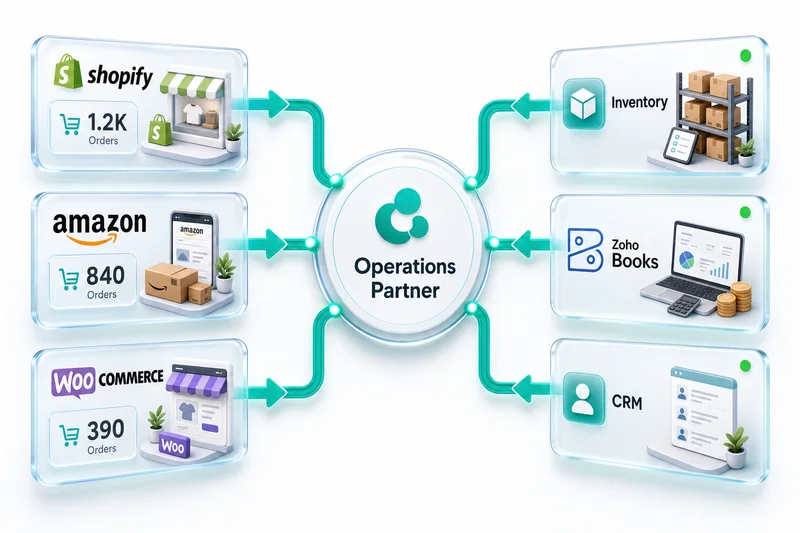
For eCommerce businesses, add Zoho Inventory integration and storefront connections so your CRM has full order and product data alongside sales interactions. The Zoho CRM, Books, and Inventory integration setup guide walks through how these three connect in practice.
Common mistakes we fix
After 100+ eCommerce and B2B implementations, the same mistakes come up repeatedly:
No close reasons on lost deals. You can't improve your win rate if you don't know why you're losing. Make close reason mandatory on every Closed Lost deal.
Too many pipeline stages. 12-stage pipelines look thorough. In practice, reps skip stages and the data becomes useless. Keep it to 5-7.
No data entry standards. If "Company Size" is a free-text field, you will get "50", "~50", "50ish", "50 employees", and "small." Use picklists and required fields.
Importing dirty data. If your spreadsheet has duplicate contacts, inconsistent company names, and missing emails, importing it into Zoho just moves the mess. Clean your data before import. If you are migrating from Excel or Google Sheets specifically, see the Excel to Zoho CRM migration guide for the deduplication steps and field mapping process.
Skipping training. A perfectly configured CRM means nothing if your team doesn't use it. Budget time for hands-on training, not just a feature walkthrough. Our implementation process includes dedicated training sessions for exactly this reason.
What a proper setup costs
Zoho CRM subscription: $20-50/user/month depending on the edition.
Professional implementation (through a Zoho Official Partner like Zolify): $3,000-$12,000 depending on team size, complexity, and integration requirements. This covers discovery, configuration, data migration, integrations, training, and 30 days of post-launch support. Zolify brings a Chartered Accountant on staff for implementations that span CRM and financial systems, ensuring your pipeline data connects cleanly to your books.
DIY setup: Free, but plan to spend 40-80 hours getting it right, and budget for rework when you hit the limitations of the default configuration.
See our pricing page for detailed implementation cost breakdowns.
Q4 CRM setup priorities for eCommerce sellers
If you're running this setup in October or November, three configurations move to the front of the queue for BFCM readiness.
Order surge routing. When Black Friday volume arrives, inbound doubles or triples. Without a routing rule tied to deal value or inquiry type, new leads get caught in a general queue and the high-value ones lose response time. Set a threshold — any inquiry above $X or from a Shopify/Amazon channel above a volume indicator — and route it directly to senior reps. Takes 30 minutes to configure; impossible to fix mid-November.
Cross-channel customer identity. A buyer who purchased on Amazon last July and contacts you on Shopify in November is not a new customer. Without CRM connected to both channels, your rep treats them as one. With Zoho Inventory and Zoho CRM connected to your storefronts, that contact record is already merged. The rep knows the history before saying hello. This is setup work, not BFCM work — but it pays off exactly in BFCM when the same customer comes back across channels.
Post-holiday win-back sequences. Configure these before BFCM, not after. A time-based workflow that triggers on January 15 for every Contact created between November 1 and December 31 means January re-engagement runs without anyone building it while they're still recovering from Q4. Three touchpoints over 30 days, each with context on what they bought and when. If you need the full Q4 automation checklist for your operations stack, the Zoho CRM automation workflows guide covers all 16 setups including surge routing and win-back sequencing.
Getting started
If you're setting up Zoho CRM for the first time or rebuilding a setup that isn't working, book a free consultation. We'll review your current sales process, identify the configuration that matches, and give you a clear scope and timeline.
Zolify is an Official Zoho Finance Partner with 100+ eCommerce implementations completed. We work with Shopify, Amazon, and WooCommerce operators who need their CRM connected to their full operations stack, not just their inbox.
Also in this series:
Frequently Asked Questions
A proper Zoho CRM setup for a 10-30 person team takes 3-5 weeks when done by an experienced Zoho partner. This covers pipeline design, custom modules, automation rules, data import, integrations, and team training. DIY setups take longer and typically need rework within 6 months because the default configuration doesn't match real sales processes.
Leads are unqualified prospects: people or companies who have shown interest but have not been vetted. Contacts are qualified individuals you have an active relationship with. When a Lead qualifies (meets your criteria), you convert it to a Contact, Account, and Deal. This conversion is a one-way process and should happen at a clearly defined point in your sales process, not randomly.
Most B2B sales pipelines work best with 5-7 stages. Fewer than 5 means you lack visibility into where deals stall. More than 7 creates friction; reps skip stages or misclassify deals. Each stage should represent a concrete action or milestone (Discovery Call Completed, Proposal Sent, Verbal Commitment), not vague states (Interested, Warm, Hot).
Professional ($35/user/month) is the minimum for most businesses. Standard ($20/user/month) lacks workflow automation, Blueprint process management, and inventory integration — features most growing teams need within their first quarter. Enterprise ($50/user) adds Territory Management, Custom Modules, and Canvas design, which matter for multi-team or multi-location operations.
For companies with 5-200 users, yes. Zoho CRM Professional and Enterprise cover the same core functionality (pipeline management, automation, reporting, custom objects, and API integrations) at 60-80% lower cost. The main trade-off is ecosystem breadth: Salesforce has a larger third-party app marketplace, while Zoho has tighter native integration across its own 45+ apps including Zoho Books, Inventory, and Desk.
Three setups have the highest Q4 impact for eCommerce sellers: (1) Order surge routing rules so high-value inbound gets prioritized when volume spikes in November, (2) Cross-channel customer identity so a buyer who previously purchased on Amazon shows up correctly if they contact you on Shopify, and (3) Post-purchase win-back sequences configured before the holiday season so January re-engagement runs automatically without setup work during the busiest month. All three are standard in a Zolify eCommerce CRM implementation.
See exactly where your Shopify, Amazon, or WooCommerce ops are leaking — free.
Get a personalised eCommerce Ops Audit: inventory gaps, accounting leaks, and order-flow bottlenecks — with a Zoho fix roadmap. Delivered in 48 hours, at no cost.