Zoho Projects for Agency and Consulting Teams: Setup, Time Tracking, and Client Billing
Agencies and consulting firms bill for time. If your time tracking doesn't connect to your invoicing, you're either leaking revenue or spending hours on manual billing. Zoho Projects fixes both.
Agencies and consulting firms have a billing problem that's also an operations problem: the work that generates revenue (billable hours) and the work that captures that revenue (invoicing) are disconnected. Time gets tracked in one tool. Invoices get created in another. In between, hours get missed, rates get misapplied, and someone spends Friday afternoon reconciling timesheets against invoices.
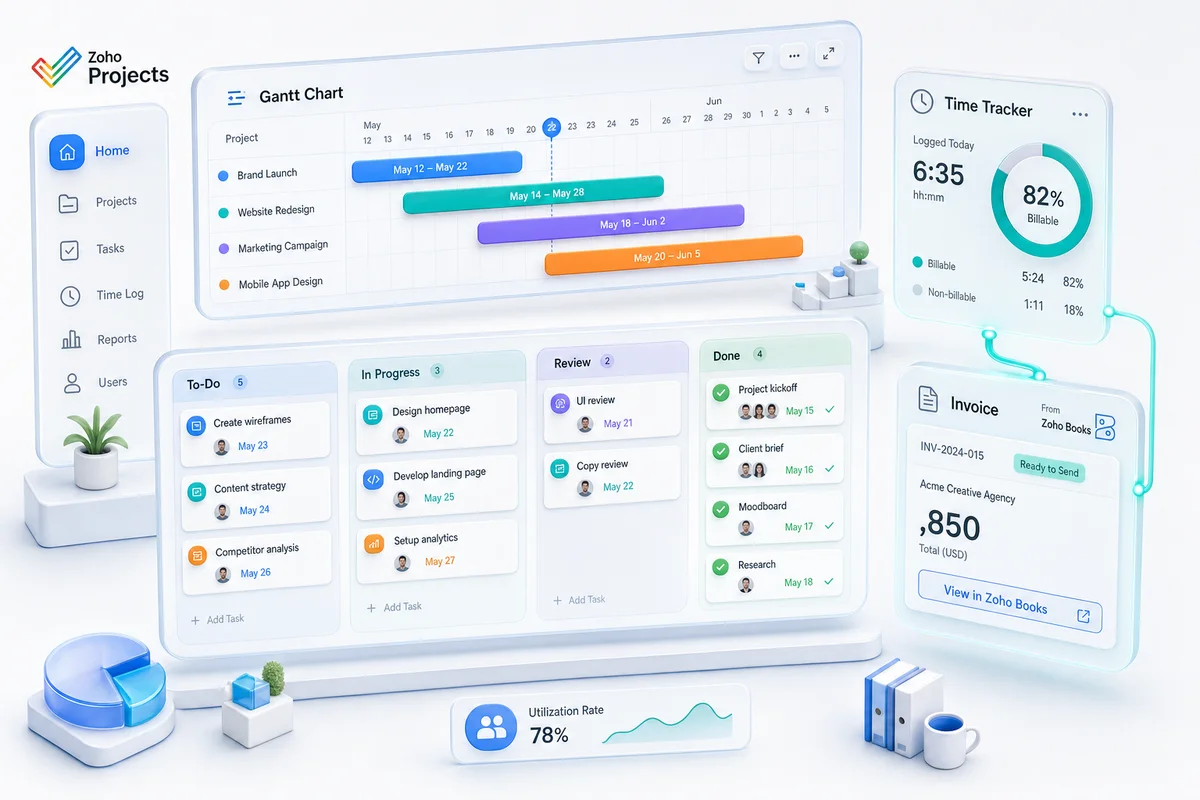
Zoho Projects fixes this by connecting project delivery directly to billing. Staff log time against client projects. Billable hours flow into Zoho Books as invoice line items. Invoices generate automatically with the correct rates, hours, and project references.
Here's how to set it up for professional services teams.
The core workflow: track time, bill clients, measure profitability
The workflow we configure for agencies and consulting firms has three layers:
Layer 1: Project structure. Each client engagement gets a project with task lists, milestones, assignments, and deadlines. Project templates handle repeatable work (monthly retainer, quarterly audit, website build).
Layer 2: Time tracking. Staff log hours against specific tasks within their assigned projects. Each entry captures: date, hours, task, billable/non-billable flag, and optional notes. This happens daily, not at the end of the week from memory.
Layer 3: Billing. Approved billable time flows from Zoho Projects to Zoho Books. Invoices generate with line items showing: project name, task description, hours, rate, and total. The client sees exactly what they're paying for. Your team doesn't re-enter anything.
These three layers together give you something most agencies don't have: real-time visibility into project profitability, not after the project is done, but while it's still running.
Setting up project templates
If your agency does the same type of work repeatedly, templates save 2-3 hours per project setup and ensure consistency.
Example: Monthly retainer template
Task List 1: Strategy & Planning
- Monthly strategy review (2 hours budgeted)
- Content calendar creation (3 hours)
- Channel performance analysis (2 hours)
Task List 2: Execution
- Content creation (10 hours)
- Campaign management (5 hours)
- Community management (4 hours)
Task List 3: Reporting
- Monthly report compilation (3 hours)
- Client presentation (1 hour)
Milestones: Strategy deck due (Day 5), Content batch approved (Day 12), Monthly report delivered (Day 28).
When you start a new month's retainer, the template creates all tasks with relative due dates. Assignments carry over from the previous month, or you adjust for team changes.
Example: Website build template
Phase 1: Discovery → Phase 2: Wireframes → Phase 3: Design → Phase 4: Development → Phase 5: QA → Phase 6: Launch
Each phase has task lists with dependencies: wireframes can't start until discovery sign-off, development can't start until design approval. Zoho Projects' Gantt chart view shows the critical path.
Time tracking that people actually use
The best time tracking system is the one your team fills in. Zoho Projects makes this practical:
Timer widget. Staff start a timer when they begin a task, stop it when they're done. The entry auto-creates with the correct project, task, and duration. No manual data entry.
Daily timesheet view. For teams who prefer to log at end-of-day, the timesheet grid shows all projects and tasks. Staff fill in hours per task for the day. Takes 2-3 minutes.
Mobile app. For consultants in client meetings or on-site, the Zoho Projects mobile app tracks time with the same timer and timesheet interface.
Mandatory daily logging. A workflow rule can alert managers when a team member hasn't logged any time by 6pm. Gentle nudge, not micromanagement, but it prevents the Friday "I don't remember what I did Monday" problem.
Billable vs non-billable
Every time entry gets flagged as billable or non-billable. Default settings per project type handle most cases:
- Client project tasks default to billable
- Internal projects (team meetings, training, admin) default to non-billable
- Specific tasks within client projects can override (e.g., internal preparation time is non-billable even on a billable project)
This distinction is critical for utilisation reporting. Your billable utilisation rate (billable hours / total hours) is the single most important metric for service firm profitability.
Billing integration with Zoho Books
The Zoho Projects → Zoho Books integration is where the manual billing work disappears.
Setup: Link Zoho Projects to Zoho Books. Map each project to a Zoho Books customer. Set hourly rates per user (different seniority levels charge different rates) or per project (fixed-rate projects).
Weekly flow:
- Staff log time daily in Zoho Projects
- Project manager reviews and approves time entries weekly
- Approved billable entries push to Zoho Books as draft invoice line items
- Finance reviews the draft invoice and sends to client
What the client invoice shows:
- Project name
- Task descriptions (customizable; you choose what level of detail the client sees)
- Hours per task
- Rate per hour
- Line totals and invoice total
No spreadsheet reconciliation. No time-to-invoice gap. No missed hours.
For agencies running fixed-fee projects instead of hourly, the integration handles milestone-based billing: when a project milestone is marked complete, it triggers a corresponding invoice in Books.
Resource allocation and capacity planning
Knowing who's available and who's overloaded prevents the two failure modes of agency work: missed deadlines from overallocation and idle capacity from poor planning.
Zoho Projects provides:
Resource utilisation view. See each team member's allocated hours versus capacity for the current and upcoming weeks. Colour-coded: green (under capacity), yellow (near capacity), red (overallocated).
Workload chart. Visual display of task assignments across the team. Drag and drop to rebalance when someone's overloaded.
Planned vs actual. Compare estimated hours per task against actual logged time. When a task budgeted for 5 hours has 4 hours logged and is only 50% complete, you know there's a scope or estimation problem before it blows up.
This data also feeds into Zoho Analytics dashboards for executive-level visibility: overall team utilisation, project margins, and revenue per billable hour trends.
Client portal: visibility without micromanagement
Clients want to know what's happening with their project. But giving them access to your internal project management tool means they see every internal discussion, time log, and resource allocation detail.
Zoho Projects' client portal solves this: clients get a filtered view showing project progress, milestone status, deliverables, and comments, without seeing time tracking, internal tasks, or financial data.
This reduces "just checking in" emails and status meetings. The client checks the portal, sees that Phase 2 is 75% complete with the next deliverable due Thursday, and doesn't need to interrupt your team.
Profitability reporting
With time tracked against projects and billing flowing through Books, you can finally answer the questions that matter:
- Which clients are profitable? Revenue minus fully-loaded cost of hours delivered.
- Which project types have the best margins? Retainers vs one-off projects vs fixed-fee builds.
- Which team members are most productive? Billable hours, utilisation rate, revenue per hour.
- Where do we underestimate? Compare estimated hours against actual hours by project type to improve future scoping.
These reports live in Zoho Analytics and update automatically from Projects and Books data. No manual compilation.
Getting started
If your agency or consulting firm is tracking time in one tool and billing from another (or worse, from spreadsheets), the Projects + Books integration eliminates that gap. If you're currently on Monday.com, our Monday to Zoho Projects migration guide covers the full board-to-project transition. For a head-to-head feature comparison before you decide, the Zoho Projects vs Monday.com comparison covers pricing, task management, time tracking, and integration capabilities.
Book a free consultation and we'll map the setup to your specific project types, billing model, and team structure. Our implementation process covers the full setup from templates through billing integration.
Frequently Asked Questions
Yes. Each time entry in Zoho Projects can be marked as billable or non-billable. Billable hours flow to Zoho Books for invoicing; non-billable hours (internal meetings, admin, training) are tracked for utilisation reporting but don't appear on client invoices. You can also set default billability per project or per task.
Zoho Projects connects natively with Zoho Books. When you approve billable time entries, they create invoice line items in Books automatically. You set hourly rates per user or per project, and the integration handles the multiplication. Draft invoices appear in Books ready for review and sending; no re-entry required.
Yes. Zoho Projects supports client portals where clients can see project progress, milestones, and deliverables without seeing internal tasks, time logs, or financial data. This reduces status update meetings and gives clients self-service visibility into their projects.
Zoho Projects Premium costs $6/user/month (billed annually) and includes unlimited projects, time tracking, Gantt charts, blueprints, and integrations. Enterprise costs $13/user/month and adds custom roles, inter-project dependencies, and advanced resource management. Both are included in Zoho One at $45/user/month.
Yes. Zoho Projects supports project templates with predefined task lists, milestones, assignments, and dependencies. When you start a new client engagement of the same type (quarterly audit, website redesign, monthly retainer), the template creates all tasks with relative due dates. This standardises delivery and ensures nothing gets missed.
See exactly where your Shopify, Amazon, or WooCommerce ops are leaking — free.
Get a personalised eCommerce Ops Audit: inventory gaps, accounting leaks, and order-flow bottlenecks — with a Zoho fix roadmap. Delivered in 48 hours, at no cost.