Zoho Inventory for Shopify: Build Real Stock Control Behind Your Store
Shopify's built-in inventory stops at quantity tracking. Zoho Inventory adds multi-warehouse management, purchase order automation, and real-time cross-channel stock sync, here's how to configure it correctly.
Shopify handles your storefront. It does not handle your operations. Inventory management, purchase orders, multi-warehouse routing, reorder points — Shopify's built-in tools cover the basics and stop there. Most merchants figure this out somewhere between 500 and 1,000 SKUs, when stock discrepancies start costing real money.
Zoho Inventory fills that gap. It connects directly to Shopify through a native integration (no Zapier required), syncing orders and stock levels in near real time, while adding the warehouse management and purchase order automation that growing Shopify stores need but Shopify does not provide.
This guide covers how the connection works, what Zoho Inventory actually adds that Shopify cannot, and the configuration decisions that determine whether the integration holds up at volume.
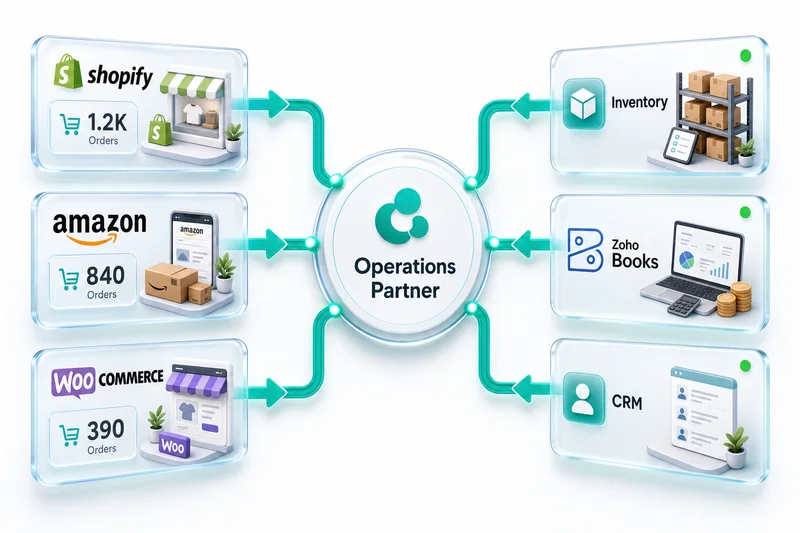
If you want to see the broader picture (connecting Zoho Books and Zoho CRM alongside inventory), our Shopify-Zoho integration guide covers the full stack architecture. For an even wider view of how Zoho powers eCommerce operations across all channels and apps, see the Zoho for eCommerce guide.
What Does Shopify's Native Inventory Actually Handle?
Shopify tracks stock quantities at the variant level across locations you define. It decrements stock when a product sells. It can show "sold out" on your storefront. That is useful for basic operations, but the gaps appear quickly as your business grows.
Shopify's inventory management does not include native purchase order workflows. There is no built-in way to create POs for your suppliers, receive goods against those POs, and have stock levels update automatically on receipt. Most merchants end up doing this in spreadsheets or through a separate app, then manually adjusting stock counts in Shopify.
Shopify also does not handle the accounting side of inventory. Cost of goods sold (COGS) tracking, landed cost calculation, and inventory valuation for your books require either Zoho Books or a separate accounting system. Shopify itself has no concept of item cost beyond what you enter manually.
Multi-channel selling adds more complexity. If you sell on Amazon, eBay, or Etsy alongside Shopify, Shopify's inventory pool does not consolidate stock across those channels. You end up managing separate counts that drift out of sync.
Zoho Inventory handles all of this. Here is a quick comparison before getting into the setup:
| Capability | Shopify native | Zoho Inventory |
|---|---|---|
| Stock quantity tracking | Yes | Yes |
| Purchase order workflow | No | Yes |
| Multi-warehouse routing | Basic locations | Full, per-location rules |
| COGS and inventory valuation | No | Yes (FIFO or average cost) |
| Supplier management | No | Yes |
| Automated reorder points | No | Yes |
| ABC analysis | No | Yes |
| Multi-channel sync (Amazon, eBay, Etsy) | No | Yes |
| Native Zoho Books integration | N/A | Automatic |
How the Shopify-Zoho Inventory Connection Works
Zoho Inventory has a native Shopify integration built into the product. You do not need Zapier, Make, or a custom connector.
The connection works through Shopify's API and webhook system. When configured correctly, the following data flows between the two systems:
From Shopify to Zoho Inventory:
- New orders arrive in Zoho Inventory as sales orders within seconds of being placed
- Product and variant data sync on creation and update
- Customer information populates against each order
- Refund and cancellation events trigger corresponding updates in Zoho
From Zoho Inventory to Shopify:
- Stock level changes in Zoho push to Shopify automatically
- When you receive goods against a purchase order in Zoho, Shopify's stock count updates
- Manual stock adjustments in Zoho (cycle count corrections, damage write-offs) propagate to Shopify
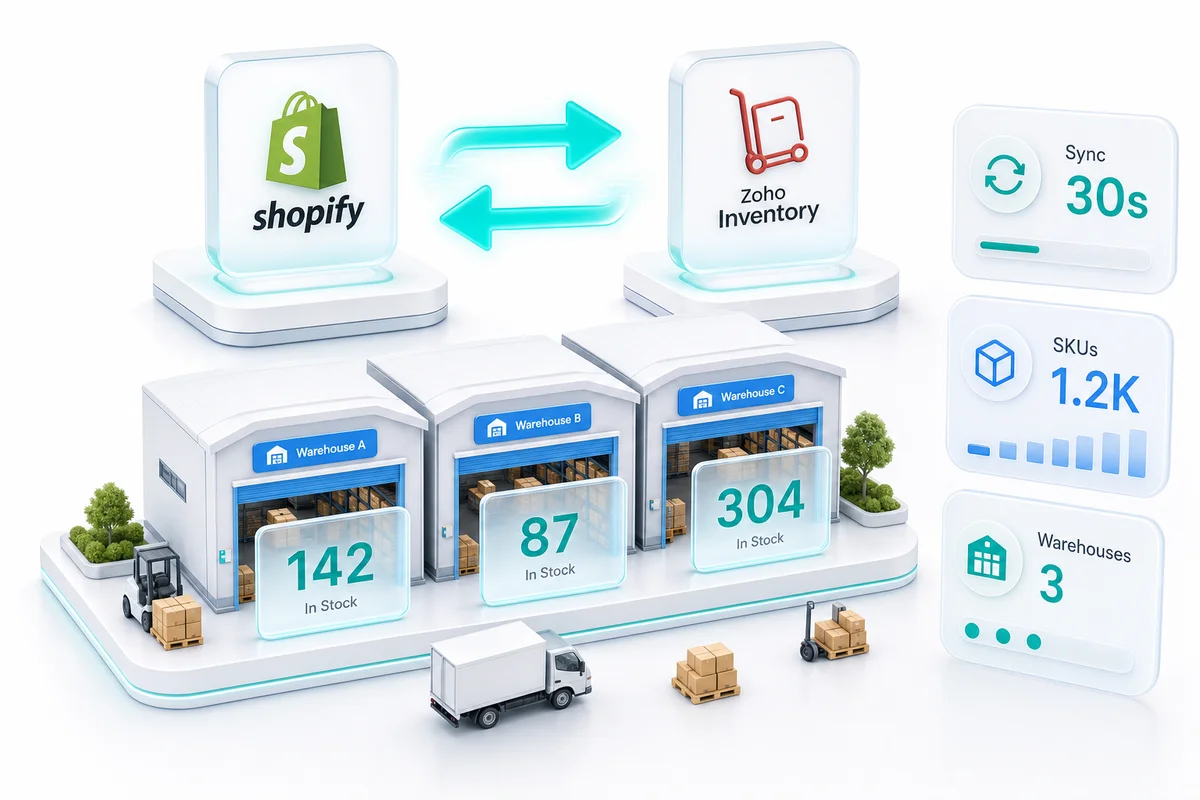
The sync is near-real-time for most events, using Shopify webhooks. A Shopify order hits Zoho Inventory within 30 to 90 seconds under normal conditions. Stock adjustments flow back to Shopify on a similar cadence.
According to Zoho's Shopify integration documentation, the connection supports Shopify's multi-location inventory model, so you can map Shopify locations to Zoho Inventory warehouses for location-specific stock tracking.
Setting Up the Integration: Where the Real Work Happens
The initial connection is straightforward. The configuration decisions that follow are where most implementations get complicated.
Map your SKUs before connecting
SKU mismatches are the most common cause of sync failures. If your Zoho Inventory items use different SKUs than your Shopify products and variants, the connector has no way to link them.
Before connecting, export your Shopify product list and your Zoho Inventory item list. Compare the SKU columns. Any mismatch needs to be resolved in one system before the sync starts, not after. For businesses migrating existing inventory from QuickBooks or a spreadsheet, this is the step where data accuracy matters most. Importing 2,000 SKUs with a 2% error rate means 40 products that will not sync correctly from day one.
For businesses switching from WooCommerce to Shopify, SKU reconciliation is the first step in a broader Zoho reconfiguration — our Shopify and Zoho integration guide covers the full connector setup sequence, including Zoho Inventory configuration and Zoho Books payout mapping for Shopify Payments.
Configure tax zones correctly
Shopify handles tax collection at checkout based on the customer's location. Zoho Inventory uses tax groups to apply taxes to line items in sales orders and invoices, which then pass to Zoho Books.
The mapping between Shopify's location-based tax rules and Zoho's tax groups needs to be explicit. If a Shopify order comes in with a specific tax amount from Shopify Payments, that amount needs to match what Zoho Books records on the invoice.
Getting this wrong does not show up immediately. It shows up during tax filing when your Zoho Books figures do not match your Shopify tax reports. By then you are reconstructing months of transactions. Our Chartered Accountant reviews tax zone configuration for every Shopify-Zoho implementation before go-live. For a detailed look at how Shopify payment transactions map to Zoho Books entries, the Shopify Payments and Zoho Books reconciliation guide covers the fee mapping and bank feed setup.
Get Help With Your Shopify-Zoho Inventory Setup
Decide on your product catalog source of truth
With bidirectional product sync enabled, changes to product details in either Shopify or Zoho Inventory will propagate to the other system. This creates conflicts when two systems are edited independently.
Most businesses pick one system as the product catalog source of truth and disable product updates flowing from the other direction. For most Shopify-first businesses, Shopify is the source of truth for product details, and Zoho Inventory is the source of truth for stock quantities and cost data.
Document this decision before go-live. When something goes wrong, knowing which system is authoritative tells you where to look first.
Test against real scenarios before launch
Before processing live customer orders through the integration, run 10 to 20 test orders through every scenario your business regularly encounters:
- Standard orders (one-item, multi-item)
- Orders with discounts or gift cards
- Partial fulfillments (where only some items ship immediately)
- Refunded orders
- Orders from international customers with multi-currency pricing
Each scenario should produce the expected outcome in Zoho Inventory (correct sales order, correct stock decrement) and in Zoho Books (correct invoice and payment receipt). Refunds deserve particular attention — returns affect stock, COGS, and accounts payable simultaneously. The eCommerce returns management with Zoho guide covers how Zoho handles inventory adjustments and refund accounting when things come back.
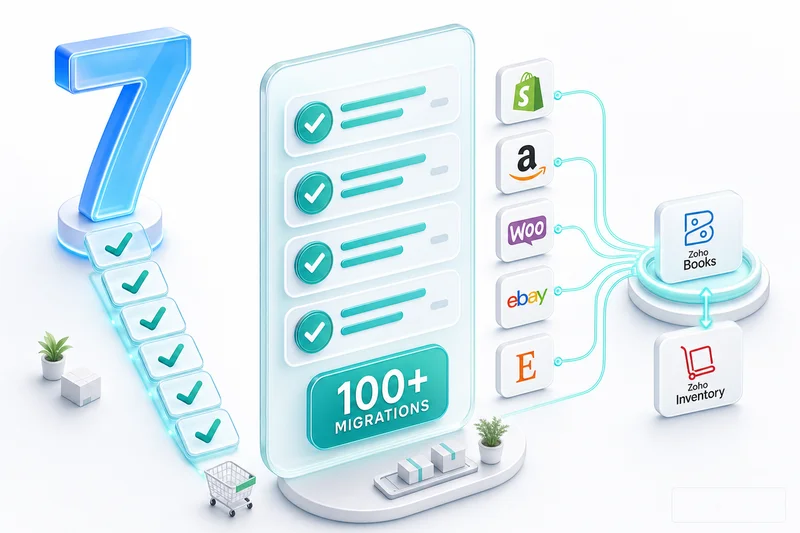
Across 100+ eCommerce implementations, partial fulfillment handling and multi-currency orders are the two scenarios that most often surface configuration gaps that were not obvious during setup.
Multi-Warehouse Management in Zoho Inventory
This is where Zoho Inventory adds the most operational value for growing Shopify merchants.
Managing multiple fulfillment locations
If you ship from your own warehouse, a 3PL, and an FBA pool for Amazon, Zoho Inventory tracks all three as separate warehouses. Each location has its own stock count. When a Shopify order comes in, you route it to the appropriate warehouse based on rules you define.
Zoho Inventory supports warehouse-specific reorder points. Your 3PL warehouse might run a different safety stock level than your primary fulfillment center. Set reorder points per location, and Zoho generates purchase orders automatically when stock at that location drops below the threshold.
According to Statista's omnichannel retail research, 73% of retailers cite inventory visibility across locations as their top operational challenge. Centralizing this in Zoho Inventory replaces the spreadsheet-per-warehouse approach that most growing merchants rely on before they set up proper inventory software.
For a full breakdown of multi-warehouse configuration — Shopify multi-location sync, Amazon FBA as a warehouse, transfer orders, and per-location reorder logic — our Zoho Inventory multi-warehouse eCommerce guide covers the complete setup.
Set Up Multi-Warehouse Inventory for Shopify
Purchase orders and supplier management
Zoho Inventory handles the full purchase order workflow: create a PO, send it to your supplier, mark items as received when they arrive, and have stock levels update automatically.
When goods are received against a PO in Zoho Inventory, two things happen simultaneously: stock goes up in Zoho, and a bill is created in Zoho Books against the supplier. This closes the purchasing loop without manual data entry. Your accounts payable in Zoho Books stays accurate without someone manually entering supplier invoices.
For businesses that also sell on Amazon, our eCommerce inventory management software guide covers how Zoho Inventory compares for multi-channel stock management, including FBA-specific considerations.
COGS and Inventory Valuation
Zoho Inventory supports FIFO (first-in, first-out) and average-cost inventory valuation. The method you choose determines how cost of goods sold is calculated for each sale.
FIFO is the more common choice for physical goods businesses because it matches the actual flow of inventory and produces cleaner tax reporting when costs fluctuate. Average cost is simpler to manage and produces less variance in COGS reporting, but it obscures the real cost of older stock.
Your Chartered Accountant or CFO should make this call based on your business model, not a default setting. Once you have recorded hundreds of transactions under one method, changing it requires adjusting historical records, a significant undertaking. For a complete guide to configuring COGS account structure in Zoho Books — covering product cost accounts, valuation method setup, and per-channel margin reporting for Shopify, Amazon, and WooCommerce — see the eCommerce chart of accounts guide for Zoho Books.
The valuation flows through to Zoho Books automatically. Every item sold generates a COGS journal entry based on Zoho Inventory's cost calculation. Your profit and loss statement in Zoho Books reflects actual inventory costs, not estimates.
Reorder Points and Low-Stock Automation
Zoho Inventory tracks reorder points at the item-warehouse level. When stock falls below the threshold, Zoho can trigger:
- An automated purchase order sent to the preferred supplier for that item
- An email alert to your purchasing team
- A flagged line item in low-stock reports
This eliminates manual stock monitoring. Instead of someone checking stock counts every morning, the system identifies replenishment needs and acts on them based on thresholds you have defined.
Setting reorder points requires understanding your supplier lead times. A reorder point set too low means you run out before the replacement stock arrives. A reorder point set too high ties up cash in excess inventory. For seasonal products, reorder points should change by season; Zoho Inventory lets you update these without disrupting other configuration.
Our Zoho Inventory reorder points guide covers how to calculate thresholds for eCommerce businesses with seasonal demand patterns and multiple fulfillment locations. For the BFCM-specific calibration — accounting for 8 to 12x velocity spikes and Amazon's early-November FBA inbound deadline — the BFCM inventory planning guide for Shopify and Amazon sellers covers the full October setup window: seasonal reorder formulas, multi-channel stock allocation between Shopify and Amazon, and automated PO configuration.
Reporting: What Zoho Inventory Gives You That Shopify Does Not
Shopify's built-in reports focus on sales and customers. Zoho Inventory adds operational and financial reporting that eCommerce businesses need for real inventory management.
Inventory summary report: Current stock value by item, calculated at your chosen valuation method. Useful for balance sheet reporting and insurance requirements.
Stock movement report: Full audit trail of every stock change: sales, receipts, adjustments, transfers. When a discrepancy appears, this is where you trace it.
ABC analysis: Zoho Inventory automatically classifies items by revenue contribution. A items generate the most revenue, C items the least. This helps you prioritize safety stock levels and purchasing attention across a large catalog.
Backordered item reports: Lists items with confirmed orders but insufficient stock. Proactive visibility into fulfillment delays before customers contact you.
Purchase order status reports: Track outstanding POs, expected delivery dates, and supplier performance over time.
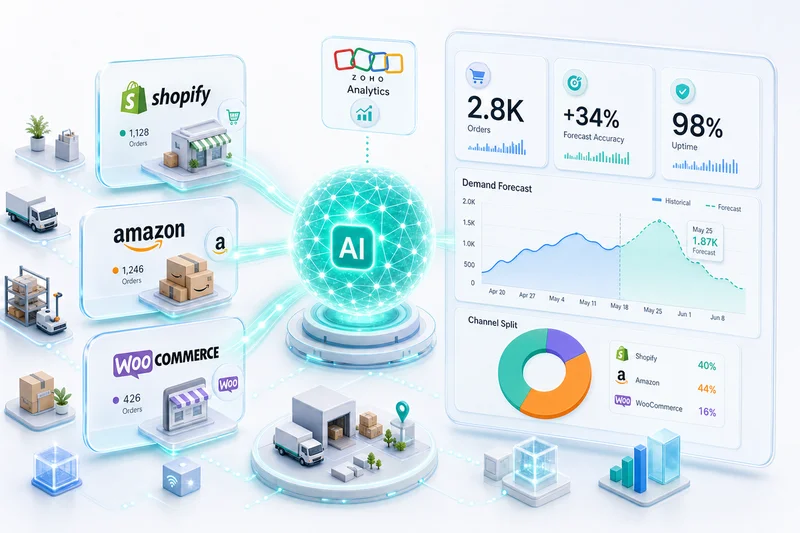
For businesses that want cross-channel reporting combining Shopify data, Amazon data, and Zoho Inventory data in a single dashboard, Zoho Analytics integrates directly with both Zoho Inventory and Zoho Books. Our Zoho Analytics dashboards guide covers how to build custom reports across the Zoho ecosystem.
How Zolify Implements Shopify-Zoho Inventory Integrations
Our Shopify-Zoho Inventory implementations follow a process built across 100+ eCommerce operations projects. That number matters here because the failure modes are real — SKU mismatches, tax zone collisions, COGS method mismatches — and most of them are avoidable when you have seen them before.
The discovery phase maps your current inventory flow from supplier to customer: every place stock is tracked, every edge case your business hits regularly. Seasonal patterns, supplier lead times, multi-location complexity, Shopify apps that interact with inventory data. All of it gets documented before anyone touches a configuration screen.
The configuration phase handles SKU mapping, warehouse setup, tax zone configuration, supplier setup, and reorder point definitions. A CA/CPA on our team reviews the accounting-side configuration — COGS method, landed cost setup, supplier payment terms — at this stage. These are accounting decisions, not developer decisions. Getting them wrong does not show up until your books do not match your orders.
As an Official Zoho Authorized Partner, we have access to direct Zoho technical support escalation and have delivered Shopify-Zoho implementations across single-store Shopify merchants and multi-channel operations running Shopify alongside Amazon, WooCommerce, and eBay. The most reliable setups start with the business logic documented, not discovered during testing.
Get a Shopify Inventory Configuration Audit
If you want to see the full Zolify implementation approach before committing, start with our Shopify-Zoho integration overview — it maps what a correct setup looks like from discovery through go-live.
Frequently Asked Questions
Zoho Inventory connects to Shopify through Shopify's official API and webhook system using Zoho's built-in Shopify integration. You authenticate the connection in Zoho Inventory's settings, map your store locations to Zoho warehouses, and configure which data flows are active. No third-party middleware is required, and the connection runs natively within Zoho.
Yes. Zoho Inventory uses Shopify webhooks for near-real-time sync. A Shopify order typically appears in Zoho Inventory within 30 to 90 seconds of being placed. Stock level changes in Zoho (from receiving a purchase order, for example) push back to Shopify on a similar cadence. For high-volume flash sales or time-sensitive promotions, this speed matters for preventing overselling.
Yes. Zoho Inventory supports multiple Shopify stores connected to a single Zoho Inventory organization. Each store can map to different warehouses or share a common stock pool, depending on your fulfillment setup. This is common for brands running region-specific Shopify stores or separate wholesale and retail storefronts.
The integration syncs new orders from the connection date forward by default. Historical Shopify orders are not automatically imported. If you need historical order data in Zoho Inventory or Zoho Books, that requires a separate data migration using Zoho's import templates or the Zoho API. Agree on the go-live cutoff date before activating the integration.
Zoho Inventory runs alongside Shopify, not instead of it. Shopify remains your storefront and checkout system. Zoho Inventory becomes the operations layer behind it, handling warehouse management, purchase orders, stock tracking, and COGS accounting. Customers never interact with Zoho directly.
See exactly where your Shopify, Amazon, or WooCommerce ops are leaking — free.
Get a personalised eCommerce Ops Audit: inventory gaps, accounting leaks, and order-flow bottlenecks — with a Zoho fix roadmap. Delivered in 48 hours, at no cost.