10 Zoho Inventory Setup Mistakes eCommerce Sellers Make
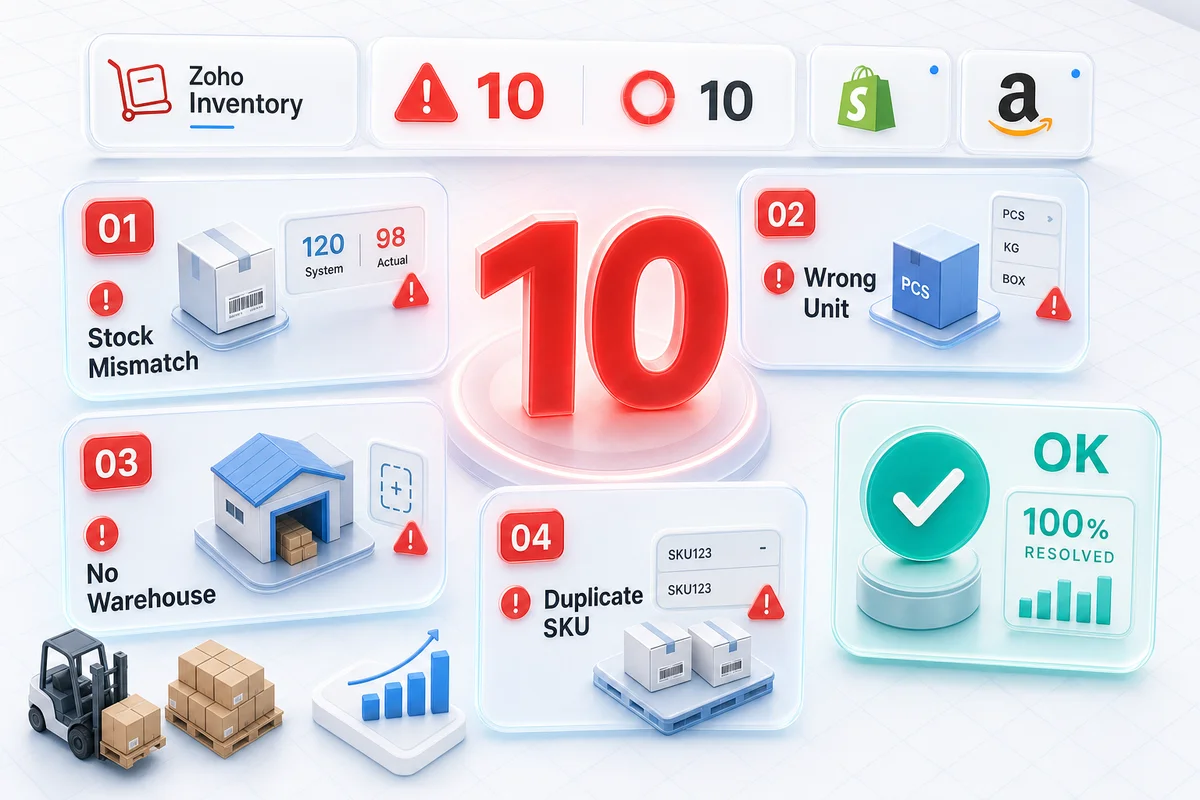
Most eCommerce sellers who self-implement Zoho Inventory hit the same wall within six months: inventory counts that drift from reality, COGS figures that do not match orders, and warehouse assignments that make multi-channel fulfillment a manual headache. These 10 mistakes explain why, and what the fix looks like.
Zoho Inventory is a cloud inventory management platform built for eCommerce sellers managing stock across Shopify, Amazon, WooCommerce, eBay, and Etsy. It handles purchase orders, multi-warehouse stock, sales order fulfillment, and native two-way sync with Zoho Books - when configured correctly.
The problem: Zoho Inventory gets basic functionality running in a day. That speed creates a false sense of readiness. The configuration decisions made on day one - often skipped or rushed - produce the real costs months later: inventory counts that drift from physical reality, COGS figures that cannot be trusted, and SKUs sitting at negative quantities with no clear explanation.
These 10 mistakes appear in almost every Zoho Inventory setup Zolify has audited across 100+ eCommerce implementations. Sellers who configure the system without implementation support run into them reliably.
The Real Cost of Getting It Wrong
Each configuration error below is individually fixable. The cost is discovering it six months in, when historical data is embedded in the system and every correction requires reconciling backward through every transaction.
| Mistake | Operational Impact | Accounting Impact |
|---|---|---|
| Missing cost price | Sales record with zero COGS from day one | Gross margin reports are meaningless |
| Skipped opening stock | Immediate negative inventory balances | COGS and valuation corrupted from launch |
| Single warehouse (multi-channel) | Oversells and fulfillment mis-routes | Stock valuation obscures location reality |
| Regular item used for bundles | Component stock never deducted on sale | COGS per bundle wrong across all transactions |
| Shopify location not mapped | Orders accepted with nothing to fulfill | Oversells, delays, and customer escalations |
| Item-level reorder points only | Replenishment triggers fire too late | Cash tied up in wrong location; FBA stockouts |
| No landed cost recorded | True cost of goods systematically understated | Margins look better than reality |
| No vendor pricelists configured | Manual PO entry; no price variance tracking | Cost drift invisible until margin is squeezed |
| Returns workflow untested | Credit notes missing; wrong warehouse restocked | Overstated inventory; GL reconciliation fails |
| Inventory not connected to Books | Manual data entry or shadow spreadsheets | Month-end close takes days instead of hours |
Mistake 1: Not Entering Cost Price Before Recording the First Sale
Zoho Inventory calculates COGS using the cost price recorded on each item. If cost price is empty or set to zero, every sale records a COGS of zero - regardless of what you actually paid for the inventory.
For a Shopify seller moving 800 SKUs at 1,500 units a month, zero cost price means a full six months of gross margin reports showing 100% margins. The real margin might be 30%. The discrepancy only surfaces when you try to reconcile Zoho Books against bank statements - at which point six months of historical orders need manual COGS correction.
Before entering any opening stock or recording any sales orders, go to each item and enter the correct cost price. For items already purchased at varying prices, enter the weighted average cost. Zoho Inventory uses this as the starting point for FIFO or weighted average COGS calculation going forward.
Also set the valuation method in Settings > Preferences > Item and Price Preferences before any transactions are recorded. Changing it after the fact requires a full stock recount and adjustment entry - an avoidable exercise if it is set on day one.
This is the most common issue in Zolify's audit engagements. Sellers realize six months in that every gross margin figure was meaningless because COGS was zero the entire time.
Mistake 2: Skipping or Incorrectly Entering Opening Stock
Opening stock is not optional. If you have inventory in your warehouse when you go live on Zoho Inventory, that stock must be entered before your first sales order. Zoho treats items with no quantity entry as having zero on hand.
The consequence: every sale immediately creates a negative inventory balance. Negative stock is allowed in Zoho Inventory's default settings. That permissiveness is the problem - it lets you proceed while silently corrupting COGS calculation, making inventory valuation reports unreliable, and creating reconciliation problems that compound each month.
A 200-SKU Shopify seller who skips opening stock will, after 90 days, have inventory records that are irreconcilable without a fresh physical count, a full data re-import, and manual COGS correction on every historical order in Zoho Books.
Run a physical count before go-live. Enter opening stock for every active SKU at cost price. Then enable the setting that prevents the problem from recurring: Settings > Preferences > Item and Price Preferences > Don't allow negative stock. This forces you to address discrepancies before they become accounting problems instead of after.
For sellers running a full year-end physical count in Zoho Inventory — including FBA reconciliation, step-by-step count procedures, and CA sign-off before December 31 — the year-end inventory stocktake guide for eCommerce sellers covers the complete procedure.
Mistake 3: Using a Single Default Warehouse for Multi-Channel Operations
Zoho Inventory's default setup creates one warehouse. Many sellers launch with that single warehouse and never add additional locations. This works for single-channel sellers fulfilling all orders from one place. It breaks the moment you add Amazon FBA, a 3PL, or a second fulfillment location.
The result: all inventory sits in one warehouse. Shopify orders route from it, even if the stock meant to fulfill those orders is at a 3PL. Amazon FBA replenishment shipments have nowhere to receive into. Your total stock count becomes a meaningless aggregate that obscures where inventory actually sits and what is actually available to ship.
An Amazon FBA seller with 400 units at FBA and 100 units in their own warehouse - but a single warehouse in Zoho Inventory - has no operational visibility. Reorder points fire based on aggregate stock, not FBA-specific stock. Stockouts at FBA go undetected until a sale fails on Amazon.
The fix: create separate warehouses for each physical location before entering any stock. See Zoho Inventory's multi-warehouse setup for eCommerce for the full configuration walkthrough. Amazon FBA gets its own warehouse. Your 3PL gets its own warehouse. Opening stock loads into the correct location from day one.
The Inventory and Warehouse management solution Zolify implements for eCommerce clients uses a structured warehouse hierarchy from the start - FBA, 3PL, owned warehouse, and in-transit - so every channel has accurate, location-specific stock visibility before the first order is processed.
Mistake 4: Setting Up Regular Items Instead of Composite Items for Bundles
If you sell bundles - a three-piece skincare set, a camera with accessories, a gift pack - those products need to be composite items in Zoho Inventory, not regular items with their own independent SKU.
A composite item in Zoho Inventory consists of component items. When you sell the composite, Zoho deducts the components from inventory - not the bundle SKU - and calculates COGS from the component cost prices. That is how it is supposed to work.
If you set a bundle up as a regular item instead, Zoho deducts the bundle SKU on sale. Component items are never touched. The component inventory balance looks accurate. The bundle SKU trends toward zero or negative. And COGS for the bundle reflects whatever you entered as the bundle's own cost price - which is usually wrong because it was not built from the actual component costs.
For a seller running 50 bundles across Shopify and Amazon, this means 50 SKUs with inflated component stock levels and incorrect COGS on every bundle sale since launch. The error is invisible in Zoho Inventory until a physical count reveals that components you appear to have in stock were actually shipped as bundles months ago.
For any product consisting of multiple discrete items sold together, create a composite item in Zoho Inventory with each component linked. Existing bundles set up as regular items need to be rebuilt as composite items, with stock adjustment entries to correct the component balances that have been accumulating incorrectly.
Mistake 5: Not Mapping Shopify Locations to Zoho Inventory Warehouses
Shopify supports multiple fulfillment locations. Zoho Inventory supports multiple warehouses. For the integration to work correctly, each Shopify location must map to the correct Zoho Inventory warehouse.
When this mapping is absent or wrong, Shopify shows inventory as available from Location A while Zoho Inventory has that stock assigned to Warehouse B. An order comes in. Shopify accepts it. Zoho Inventory has nothing to fulfill from the assigned warehouse. The result: oversell, manual intervention, fulfillment delay, and a customer escalation - for a configuration error that takes five minutes to fix at setup time.
During integration setup, explicitly map each Shopify location to its corresponding Zoho Inventory warehouse. Then create a test order in Shopify and confirm it routes to the correct warehouse in Zoho Inventory before going live with real orders. For the full integration architecture, see our Shopify Zoho integration guide.
Mistake 6: Not Configuring Per-Warehouse Reorder Points
Zoho Inventory allows reorder points per item per warehouse. Most sellers who configure reorder points at all set them at the item level without warehouse breakdowns.
The result: reorder points trigger based on total stock across all warehouses. If you have 100 units - 80 at Amazon FBA, 10 at a 3PL, and 10 in your own warehouse - your aggregate reorder point of 50 never triggers. But you only have 10 units available for Shopify same-day fulfillment. FBA stock is not available for Shopify orders. The 3PL stock may have a 24-hour fulfillment lead time.
Amazon's inbound processing takes 3–7 days. If your FBA reorder point does not account for that lead time, you are perpetually reactive on replenishment - sending emergency shipments at express freight rates instead of planned replenishment at standard rates.
Set reorder points per warehouse, not just per item. Your FBA warehouse needs a higher threshold than your own warehouse because the replenishment lead time is longer and the buffer needs to match. See multi-channel inventory management with Zoho for how reorder points should be structured across fulfillment locations.
Mistake 7: Ignoring Landed Cost for Import-Heavy Inventory
Sellers who import goods pay the product cost plus freight, customs duties, and handling. The item cost in Zoho Inventory should reflect what the product cost to land in your warehouse - not just the supplier invoice amount.
When landed cost is excluded, COGS understates the true cost of selling each unit. Margin reports look better than reality. Pricing decisions made from those reports underprice the product and compress margins over time.
Take a seller importing a product with a $4.00 supplier cost but $1.80 in landed costs - freight, duty, handling. If they record only $4.00 in Zoho Inventory, they are reporting 45% margin when the real margin is 32%. That 13-point gap is invisible until a pricing review or a failed audit forces the reconciliation.
Zoho Inventory has a landed cost feature that allocates additional costs to a purchase order and distributes them proportionally across items. Use it for any inventory incurring shipping, freight, or duty costs beyond the supplier price. The Zoho Inventory help center covers landed cost configuration in detail.
Mistake 8: Not Configuring Vendor Pricelists or Preferred Suppliers Per Item
When you reorder from multiple suppliers, Zoho Inventory can store the preferred supplier and purchase price list at the item level. Without this configuration, purchase orders require manual supplier selection and price entry every time - and there is no automatic tracking of which supplier offers the best price per item, or how actual prices have moved over time.
For sellers managing 300+ SKUs across six or eight suppliers, this means every purchase order is a manual lookup exercise. Price variances accumulate invisibly. A 15% cost increase from one supplier only surfaces when margins are already compressed and the cause is unclear.
Add the preferred vendor and purchase price to each item record. Zoho Inventory then auto-populates purchase orders with the correct supplier and price, tracks actual purchase costs against the price list, and generates purchasing reports showing supplier price variance over time. That supplier cost data also feeds into COGS accuracy for the next reorder cycle.
Mistake 9: Not Testing the Returns Workflow Before Go-Live
Returns are a routine operational workflow for eCommerce sellers - not an edge case. Configuring Zoho Inventory without testing the returns process end to end means discovering the gaps during a busy fulfillment period, when the cost of getting it wrong is highest.
Common returns configuration problems: returns that do not link to the original sales order, restocked items that increase the wrong warehouse count, damaged returns that never route to a separate quarantine location, and credit notes that do not generate in Zoho Books.
A seller processing 200 returns a month with an unconfigured returns workflow is manually entering credit notes in Zoho Books, manually adjusting warehouse stock, and manually routing damaged goods - while running live operations in parallel. This is hours of operational overhead per month for a configuration problem that takes one testing session to catch.
Before go-live: create a test order, fulfill it, and process a return. Verify the return links to the original order, the correct warehouse receives the restocked item, Zoho Books creates a credit note, and COGS adjusts correctly. For the full returns workflow - including damaged goods routing and credit note reconciliation - see our eCommerce returns management with Zoho guide.
Mistake 10: Not Connecting Zoho Inventory to Zoho Books from Day One
Zoho Inventory and Zoho Books have a native integration that keeps inventory and accounting in sync automatically. Every sales order fulfillment in Zoho Inventory creates the corresponding invoice in Zoho Books. Every purchase order receipt updates inventory and creates a vendor bill.
Sellers who set up Zoho Inventory in isolation - to manage stock without connecting accounting - end up doing manual data entry into Zoho Books or running a spreadsheet alongside Zoho Inventory. Both approaches defeat the purpose of having Zoho Books and make month-end close a multi-day manual exercise instead of a review of automated records.
The connection is not difficult to configure. It is skipped because sellers assume they will add it later. Later means months of manual reconciliation, transactions that never made it into Zoho Books, and a chart of accounts that was never set up correctly for eCommerce from the start.
Connect Zoho Inventory to Zoho Books during initial setup - not later. Set the chart of accounts correctly for eCommerce: separate inventory asset accounts per product category, a dedicated COGS account, and a marketplace fee expense account. For the right account structure, see eCommerce chart of accounts for Zoho Books. The connection takes minutes to configure and eliminates hours of manual reconciliation every month.
Why These Mistakes Compound
Each mistake on this list is fixable in isolation. The problem is compound discovery - finding three or four of these issues simultaneously, six months after go-live, with historical data embedded in every affected record.
Rebuilding composite items after six months of sales means reconciling component deductions against every unit that was actually shipped. Fixing missing cost prices means reconstructing COGS back to launch date across every order. Rebuilding warehouse structure requires migrating stock quantities with a fresh physical count - on top of the remediation work already in progress.
Early configuration is an hour of setup. Late remediation is weeks of cleanup. The cost difference is not close.
Getting Zoho Inventory Configured Correctly from Day One
Zolify's eCommerce Operations engagements include a structured Zoho Inventory configuration review as part of every implementation: every warehouse, item, integration mapping, and valuation method is confirmed before the first transaction is recorded.
Every configuration is reviewed by a CA (Chartered Accountant) before go-live - the same accounting expertise deployed across 100+ eCommerce implementations on Shopify, Amazon, WooCommerce, eBay, and Etsy. As an Official Zoho Finance Partner, Zolify has direct escalation access to Zoho support for integration issues that need platform-level resolution.
Book an eCommerce Ops Audit to get a professional assessment of your current Zoho Inventory setup before configuration errors become accounting problems.
For how Zoho Inventory connects with Zoho Books, Zoho CRM, and multi-channel operations across Shopify, Amazon, WooCommerce, eBay, and Etsy, see Zoho for eCommerce: The Complete Operations Platform Guide. For sellers on TikTok Shop specifically, these configuration mistakes compound quickly — see TikTok Shop inventory and accounting with Zoho for the TikTok-specific setup that avoids the most common errors on that channel.
Frequently Asked Questions
Not mapping Shopify fulfillment locations to Zoho Inventory warehouses. When the location-to-warehouse mapping is wrong, Shopify shows stock as available from Location A while Zoho Inventory has it assigned to Warehouse B - causing oversells and fulfillment errors. Fix: during integration setup, explicitly map each Shopify location to its corresponding Zoho Inventory warehouse and run a test order before going live.
Yes, but only if cost price is recorded at the item level before any sales. Zoho Inventory uses your chosen valuation method (FIFO or weighted average) to calculate COGS when a sales order is fulfilled. If the cost price field is empty or set to zero, COGS calculates as zero regardless of what you paid - making every gross margin report in Zoho Books unreliable from day one.
In Zoho Inventory Settings > Warehouses, create a warehouse named 'Amazon FBA' with the appropriate address. Link your Amazon Seller Central account through Zoho's Amazon integration. Set separate reorder points for the FBA warehouse to account for Amazon's 3–7 day inbound processing delays. Never mix FBA stock with your own warehouse inventory - keep them in separate locations at all times.
Zoho Inventory treats items with no stock entry as having zero quantity on hand. When you record sales without entering opening stock, inventory balances go negative immediately for items you actually have in your warehouse. This corrupts COGS calculation and inventory valuation, and creates reconciliation problems that compound every month. Opening stock must be entered at cost price before your first sales order.
Yes. A composite item deducts the component items from inventory when the bundle is sold, not the bundle SKU itself. COGS calculates from the component item cost prices. If you set up bundles as regular items instead, Zoho Inventory deducts the bundle SKU without touching component stock - causing inventory inaccuracies and incorrect COGS figures across every sale.
See exactly where your Shopify, Amazon, or WooCommerce ops are leaking — free.
Get a personalised eCommerce Ops Audit: inventory gaps, accounting leaks, and order-flow bottlenecks — with a Zoho fix roadmap. Delivered in 48 hours, at no cost.