Zoho Inventory Reorder Points: Auto-Replenishment That Actually Works
Setting reorder points wrong means either stockouts that kill sales or overstock that eats cash. Here's how to calculate and configure Zoho Inventory's reorder system to keep stock levels right.
There's a specific moment when inventory management fails: an order comes in, the system shows 3 units available, but 2 are already committed to other orders and the third is damaged. You're out of stock and the purchase order that should've gone out two weeks ago never did because nobody updated the reorder point after sales doubled last quarter.
This is the most common inventory problem across our eCommerce implementations. Not warehouse fires or supply chain collapses. Just reorder points set once and never touched again.
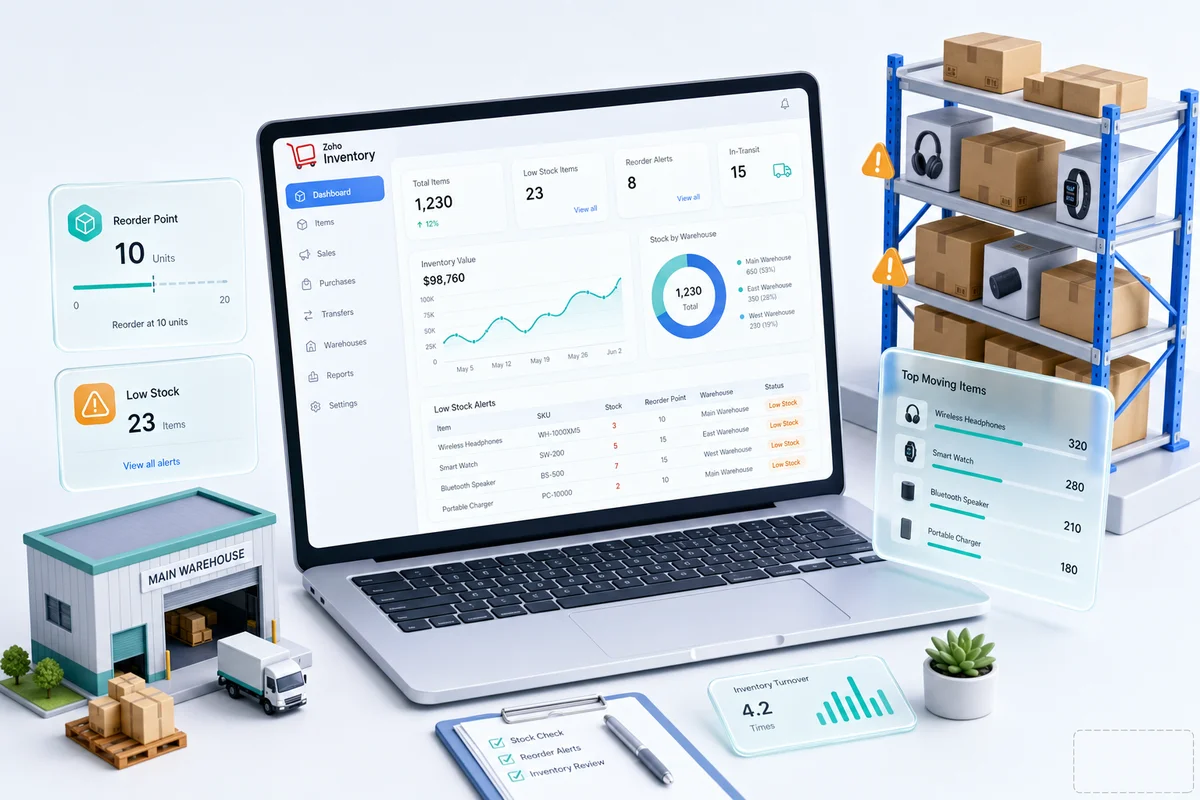
Zoho Inventory's reorder system handles this well when the numbers are right. It monitors stock per item and per warehouse, triggers alerts or auto-creates purchase orders when thresholds are hit, and connects to Zoho Books for cost tracking. The system works, but only if the thresholds themselves are calculated correctly.
The reorder point formula
The math is:
Reorder Point = (Average Daily Sales × Lead Time in Days) + Safety Stock
Three inputs. Average daily sales is your units sold per day over the last 90 days (not 30, which is too volatile; not a full year, which is too stale). Lead time is the full cycle from placing a purchase order to receiving goods in your warehouse: supplier processing, manufacturing, shipping, customs if you import, plus receiving and inspection on your end. Safety stock is the buffer for demand spikes and late shipments — more on calculating it below.
Example: you sell 10 units per day on average. Your supplier takes 14 days to deliver. You want 5 days of safety stock (50 units).
Reorder Point = (10 × 14) + 50 = 190 units
When stock hits 190, Zoho triggers a reorder. By the time the shipment arrives 14 days later, you've sold roughly 140 units, leaving the 50-unit safety stock intact.
Calculating safety stock
Safety stock protects against two things: demand running higher than expected and supply arriving later than expected. How much you need depends on the variability you face in both.
For most eCommerce businesses, the practical formula is:
Safety Stock = (Max Daily Sales - Average Daily Sales) × Average Lead Time
If your average is 10 units per day but you've seen peaks of 18, and lead time is 14 days:
Safety Stock = (18 - 10) × 14 = 112 units
That feels like a lot until you run the numbers. If your product costs $5 and a stockout costs $50 per day in lost revenue, carrying 112 extra units ($560 in inventory) protects $700+ per day. The math usually works in favor of more safety stock, not less.
For seasonal products, adjust quarterly. Q4 safety stock on a consumer item should be 2-3x your Q1 levels. Set a calendar reminder before each season so you're not scrambling in October. For the January reset specifically — recalibrating reorder points after the holiday rush, clearing slow movers, and building Q1 purchase orders — see the Q1 inventory planning guide for Zoho Inventory.
Configuring reorder points in Zoho Inventory
Reorder settings live on each item's record in Zoho Inventory. The reorder point field is where you enter your calculated threshold — the stock level that fires the alert or creates the PO. The reorder quantity is how many units to order when it triggers; a practical rule of thumb is enough to cover 30-45 days of average sales. Assign a preferred vendor so Zoho knows which supplier to use when auto-generating the purchase order.
The notification setting matters more than most people realize. Email alerts mean someone has to manually create the PO when they see the notification. Auto-PO creation means Zoho generates the purchase order and either sends it directly or holds it for review. For high-volume SKUs, auto-PO creation saves real time. For expensive or custom items, stick with notifications so someone reviews before committing to the order.
Multi-warehouse reorder logic
If you run multiple locations (your own warehouse, Amazon FBA, a 3PL), each needs independent reorder points.
Your main warehouse might hold 300 units with a reorder at 190. Amazon FBA might trigger at 60 (you're shipping from your own warehouse to FBA rather than waiting on a supplier, so the replenishment cycle is shorter). Zoho Inventory supports per-warehouse reorder points set independently by location. If you're adding a 3PL to this setup for the first time — creating warehouse locations, configuring the WMS sync, and establishing per-channel routing rules — the 3PL Zoho Inventory integration guide covers that full workflow.
For multi-channel sellers running Shopify, Amazon, and WooCommerce, the reorder calculation should account for total demand across all channels, not just the channel that ships from that warehouse. A stockout at your main warehouse affects Shopify and WooCommerce fulfillment even if Amazon FBA still has stock. For a broader look at how inventory fits into a unified multi-channel ops stack, the multi-channel inventory management guide for Zoho covers channel allocation, stock routing, and real-time visibility across storefronts.
When reorder points go wrong
The most common failure is set-and-forget. You configure reorder points in January based on last year's data. By August, sales have grown 40% and the reorder points are firing too late.
Review quarterly. If you haven't built velocity baselines yet — the 12-month sales data pull, seasonal index, and initial reorder formula — the eCommerce demand forecasting setup guide for Zoho Inventory walks through that process from scratch.
If Q4 is approaching, the eCommerce peak season readiness guide covers how to recalculate reorder points for peak volume alongside your accounting and integration checks. For BFCM specifically — where velocity can run 8 to 12 times above baseline — the BFCM inventory planning guide for Shopify and Amazon sellers covers the October calibration window: velocity-based formulas, multi-channel stock allocation, and the pre-November PO deadline. For Amazon Prime Day — where FBA deal velocity runs 3 to 5 times above baseline — the Amazon Prime Day inventory planning guide covers the 8-week preparation sequence, including the temporary reorder point adjustments that need to be in place before the event starts.
Lead time changes are easy to miss. Your supplier used to deliver in 14 days; shipping delays pushed it to 21. Your reorder point didn't change. You stock out for a week. Update lead times whenever they shift, not just at the next quarterly review. For a complete list of the configuration errors Zolify fixes most often across new inventory clients, the Zoho Inventory setup mistakes guide walks through each issue and the correct configuration.
Channel averaging is another trap. Folding Amazon and Shopify demand into one daily average ignores the fact that Amazon spikes during Prime Day while Shopify stays flat. If you fulfill from different warehouses, calculate velocity per channel.
MOQ mismatches trip people up too. Your supplier's minimum order is 500 units, but your reorder quantity calculation says 200. Either adjust the reorder point to trigger earlier (giving you time to accumulate demand that justifies the 500 units) or find a supplier with a lower minimum.
Using Zoho Analytics for smarter reordering
Raw reorder points are a starting point. Zoho Analytics connected to Zoho Inventory gives you the data to improve them over time.
A stockout frequency report shows which SKUs run dry most often — those need higher safety stock or shorter review cycles. Inventory turnover by SKU separates fast movers (12+ turns per year) that need aggressive reorder points from slow movers (2-3 turns per year) where lower thresholds reduce carrying cost. A days-of-supply dashboard shows in real time how long each SKU can last at current velocity; anything under your lead time is a problem that needs immediate attention. An overstock report surfaces items with 90+ days of supply that are eating cash, where the fix is usually lower reorder quantities, a promotion to clear stock, or a quiet discontinuation.
Getting started
If you're managing reorder points in spreadsheets, or haven't set them up in Zoho Inventory at all, book a free consultation. We'll review your top SKUs, calculate the right thresholds, and configure the automation. Zolify has completed 100+ eCommerce inventory implementations — Chartered Accountant on staff, Official Zoho Finance Partner. Our inventory and warehouse management solution covers the full setup, from initial reorder formulas through multi-warehouse automation.
Frequently Asked Questions
A reorder point is the stock level at which Zoho Inventory triggers a notification or auto-creates a purchase order. When an item's available quantity drops to or below the reorder point, the system acts. The formula: Reorder Point = (Average Daily Sales × Lead Time in Days) + Safety Stock. Set it too high and you tie up cash in excess inventory. Set it too low and you stock out.
Yes. When stock hits the reorder point, Zoho Inventory can auto-generate a purchase order to the preferred vendor with the reorder quantity pre-filled. You can configure it to auto-send the PO or hold it for review. This works per-item and per-warehouse.
Safety stock is the buffer that protects against demand spikes and supply delays. A practical formula: Safety Stock = (Maximum Daily Sales - Average Daily Sales) × Average Lead Time. For an item averaging 10 units/day with peaks of 15 and a 7-day lead time: (15 - 10) × 7 = 35 units safety stock. Adjust quarterly based on actual demand patterns.
Yes. You can set different reorder points per warehouse. A warehouse handling Amazon FBA replenishment might need higher reorder points than your retail location. Each warehouse monitors stock independently and can trigger separate purchase orders.
Quarterly at minimum. Reorder points based on last year's data don't account for growth, seasonal changes, or supplier lead time shifts. Review your top 20 SKUs monthly and the full catalog quarterly. Use Zoho Analytics to identify items where actual stockout or overstock events indicate incorrect reorder levels.
See exactly where your Shopify, Amazon, or WooCommerce ops are leaking — free.
Get a personalised eCommerce Ops Audit: inventory gaps, accounting leaks, and order-flow bottlenecks — with a Zoho fix roadmap. Delivered in 48 hours, at no cost.